
|
|
Articles
Stay-on-Top: How to Keep a Window Always on Top of Others with a Single Click!
Introduction
 Stay Always-on-top is one of several buttons you can add to any window's title bar with the help of Actual Title Buttons. It will help you observe the content of any window while working with another one.
Actual Title Buttons is an innovative utility which allows controlling windows' 'behavior' by means of extra buttons placed near the standard Microsoft Minimize/Restore/Close ones or by means of keystroke combinations that result in greater speed of work and its accuracy.
Keep on Top Any Window
Just click on the Stay Always-on-Top button or use a hokey (Win+S, by default) and Actual Title Buttons will keep that particular window on top of all others. This means that other windows will no longer annoy you by masking the window you need to see as you work. It is very helpful when you are concentrating on a project and want to avoid the distractions of other windows popping up on top of your active window.
It is a great function when working with multiple windows open at once, particularly when dragging and dropping fr om one window to another. You can sel ect a window to Stay Always-on-Top all the time, so it never falls behind another window.
See what Chris Pirillo from Lockergnome wrote in his review:
|
While writing this review, I am using the 'Stay-On-Top' command for Notepad, and during this time I have already received five instant messages. Why is this important? Normally these messages would pop up in front of Notepad and disrupt my work... but with Actual Title Buttons, I can keep typing without missing those 'important' instant messages. The only difference is that they aren't an annoyance now. |
Here are some examples of programs that benefit fr om using the Stay Always-on-Top button:
- Stay Always-on-Top for e-mail message composing windows, for example, Microsoft Outlook, Outlook Express, Eudora, Incredimail and others
- Stay Always-on-Top for any Internet browser, for example, Internet Explorer, Mozilla Firefox, Opera etc.
- Stay Always-on-Top for sticky notes, for example, Outlook Notes
- Stay Always-on-Top for text editors, for example, Windows Notepad or Windows WordPad
- Stay Always-on-Top for any Instant Messenger: Yahoo Messenger, Windows/MSN Messenger and so on.
- Stay Always-on-Top for Windows Explorer folders and system dialogs
- Stay Always-on-Top for other tools, for example, Windows Calculator
- Stay Always-on-Top for any application, for example, Microsoft Word, Windows Media Player, Adobe Acrobat Reader or any other
Conclusion
In this article we showed you only one feature, available in Actual Title Buttons. But with its help you can also add new  Minimize Alternatively,
  Roll up,
  Make Transparent,
  Resize and many other additional buttons to any window's title bar.
Actual Title Buttons increases the efficiency of your Windows operating system and lets you organize desktop space better if you usually multitask in several applications. Try it out, Actual Title Buttons is easy-to-use and very handy!
Useful Links
See the following links that will be your guides in getting acquainted with Stay Always-on-Top feature:
- Download the fully-functional 60-days trial version of Actual Title Buttons right now. It is completely free!
- Actual Title Buttons Home the official page wh ere you can download or order the risk-free version and read what users say about Actual Title Buttons.
- Stay Always-on-Top Help section here you can find additional information about Stay Always-on-Top feature.
- Here you can find the information on how to create specific settings and apply Stay Always-on-Top action just for a particular window.
Check out our articles. You may find other ways for using new title buttons and other features to make your work easier!





Make Winamp and Winamp skins transparent
Make the basic Winamp skin or any of the optional Winamp skins semi-transparent .
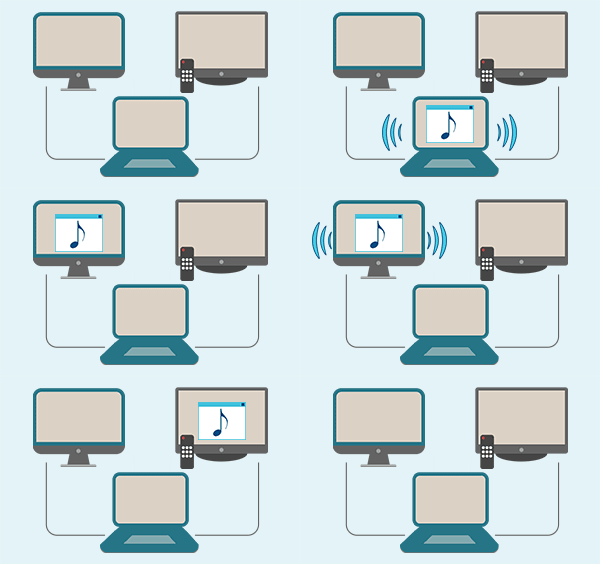
Automatic Audio Playback Redirection
By default Windows can't handle the simple and obvious scenario: dragging a multimedia app to a display/monitor with its own speakers does not automatically switch audio playback to those speakers.
Here we offer a simple solution.
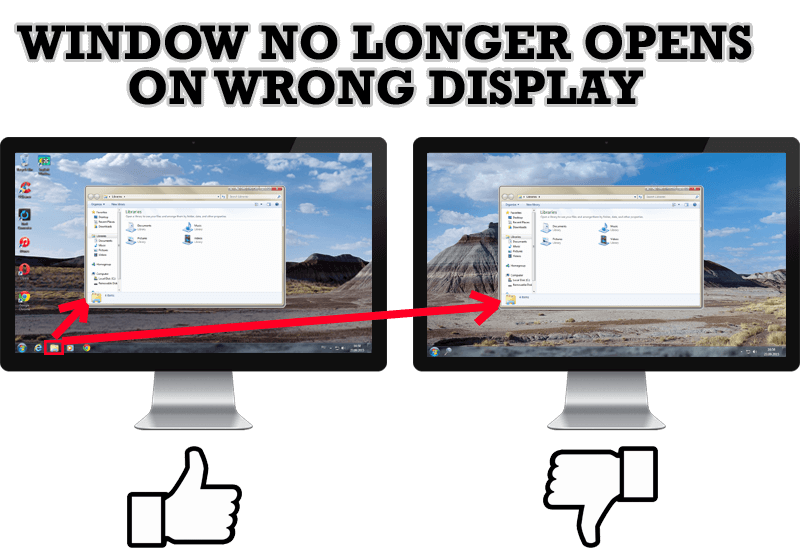
Specific Settings - Window no Longer Opens on Wrong Display
Create specific settings for a window - and it will no longer open on a wrong monitor.
Dual Monitor Set Up
How to Setup Dual Monitor.
Desired Software for the Mouse on Multi-Monitor PC
Actual Multiple Monitors offers many useful features for the mouse on multiple monitors PC.
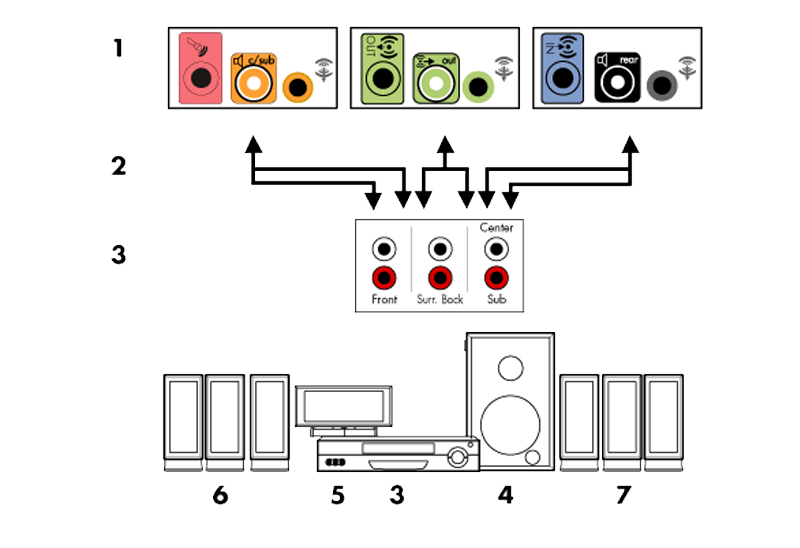
How to Quickly Switch Default Audio Device in Windows
Learn how to switch default audio device in one click by using Actual Window Manager or Actual Multiple Monitors.
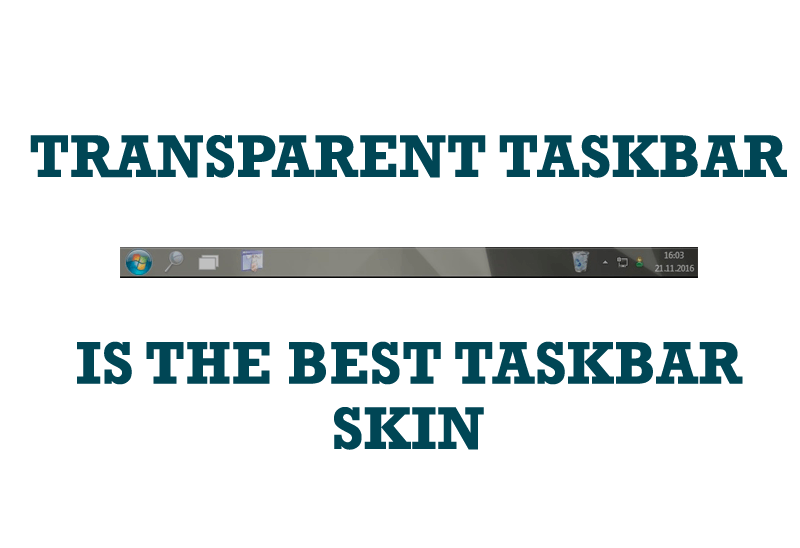
Transparent Taskbar is the Best Taskbar Skin!
If you have decorative wallpaper, or attractive desktop colors, Actual Transparent Window lets them through to keep your desktop work area beautiful!
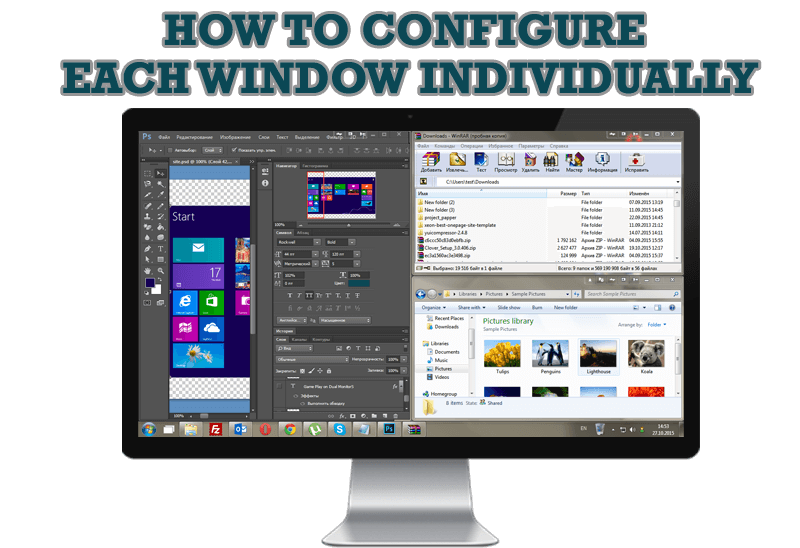
How to Configure Each Window Individually or Just the Best Window Management for Windows
Actual Window Manager offers you to configure each window as you wish with help of many useful features.
How to Get New Windows 10 UI Features in Windows 7/8 with Actual Window Manager 8.3
Wanna new Windows 10 features in Windows 7/8? You can get them without upgrading, just use Actual Window Manager 8.3.

How to Resize a Window to the Desired Size in One Click
Actual Window Manager provides an additional title button, which allows you resize a window to desired size in one click.
