
|
|
Articles
How to find a folder to which Skype saves received files and open it in 2 clicks
Introduction
With the latest updates, Skype no longer prompts the user to save a file somewhere, but immediately saves all files to a specially designated folder, and finding the folder to move files fr om it to another directory, or open them with an application other than that set by default, is sometimes a difficult task.
By default, this folder is located at the following address "C:\Users\%UserName%\AppData\Roaming\Skype\My Skype Received Files (without quotation marks), wh ere "%UserName%" is your user name. In order to quickly move to this folder, there are two relatively easy ways:
1. Move to the folder directly from Skype
Upon receipt of a file to Skype, right-click the mouse, and from the menu select "Show in folder".
This method has some disadvantages: firstly, you can only use this method for a short time after receiving a file, and secondly, when receiving images, Skype will allow you to open a standard file viewer for Windows, but will not allow the option of showing the file in the folder.
2. Access the Skype folder in 2 clicks using the Actual File Folders program
Familiar with this problem, Actual Tools offers Skype users a simple solution: the Actual File Folders utility, which will remember the location of the folder wh ere files are saved, and allows access to it in 2 clicks.
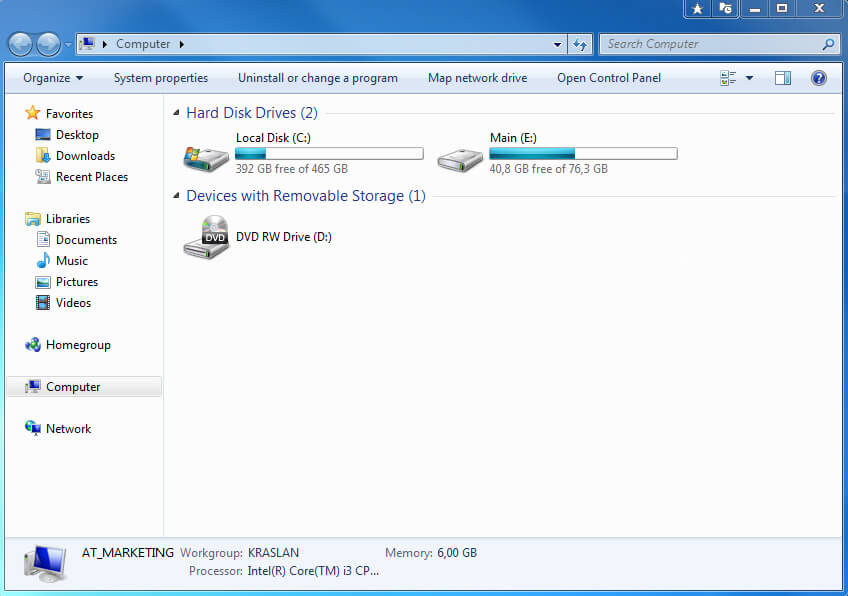
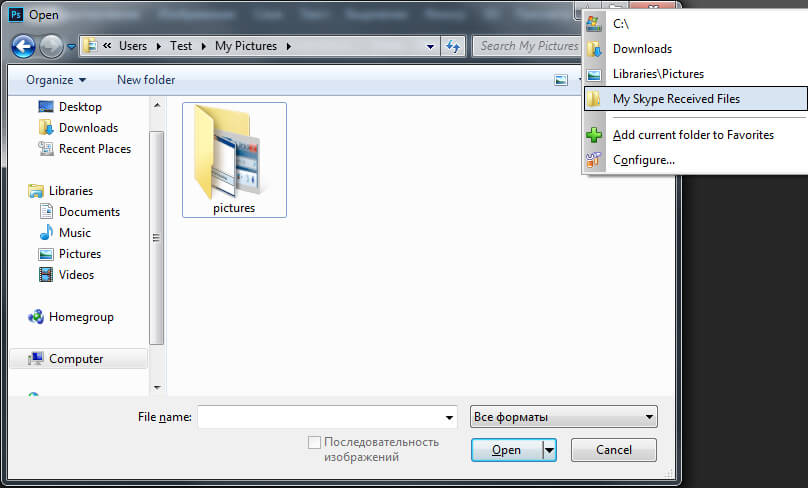
After installation, the utility adds to every window, whether it is Explorer, any Office application, or Open/Save dialog box of any application, two additional header buttons: Favorite Folders and Recent Folders. The function of these buttons is very similar to the functions of any browser, as Favorite Folders is a list of your favorite folders (bookmarks) and compiled by you manually, and Recent Folders is the history of transfer to folders (browser history), compiled automatically. You can manage lists and navigate through folders contained in them using these buttons.

The folder in which Skype saves files by default is added to your Favorite Folders list, so that to go to it, you only need 2 easy steps:
- Open a new Explorer window by pressing Win+E
- Left-click Favorite Folders and select the "My Skype Received Files" folder.
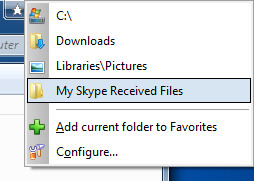
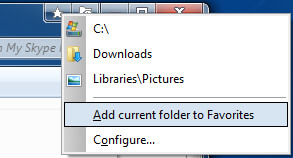
To add any other folder to the Favorite Folders list, navigate to it, left-click the Favorite Folders button, and then select "Add current folder to Favorites".
Now to get to any frequently used folder, you just need 2 clicks.






Add 'Minimize To Tray' feature to your favorite offline browser
If you usually switch to another application and work with it, while the offline browser is doing its job, it may be very convenient to minimize the program to the system tray or to any place of your screen and save taskbar space.

Use Actual Window Manager to hide SSH tunnels to system tray
If you use SSH tunnels to allow access through a firewall, or just to encrypt your communication, you might get sick of the proliferation of tasks littering your bar. It is very easy, however, to use Actual Window Manager to automatically clear these up.

Actual Window Manager will make your Mozilla Firefox better!
As you know, Mozilla Firefox is a very convenient Web-browser. Though, like any other creation of the humanity it is not perfect. The most obvious answer is to find a program which will make your browser convenient and your work comfortable and simple.

Windows tweaks by Actual Tools
There are unlimited ways to use Actual Tools programs for tweaking your Windows Operating System.
-
Optimize Adobe Acrobat Reader by means of new functional buttons
Such innovative functions as Make Transparent, Stay Always-on-Top, Minimize to Tray, Roll Up etc. will make your work with Adobe Acrobat Reader much easier and more productive.
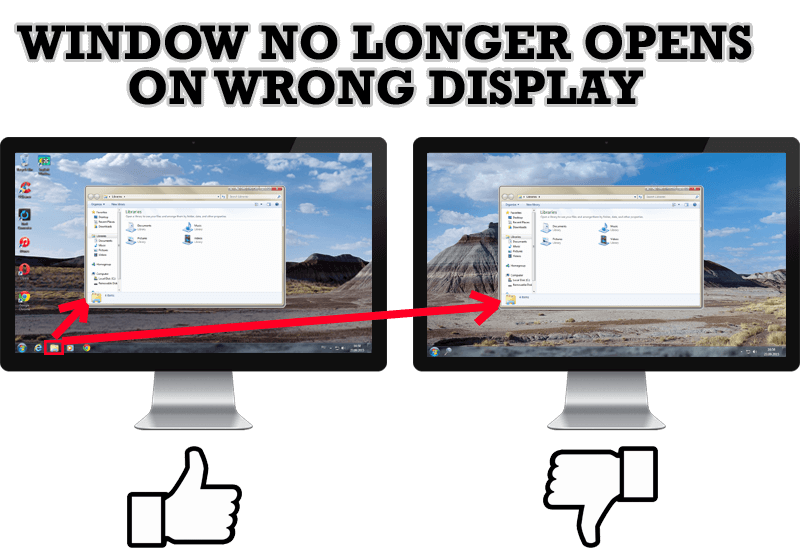
Specific Settings - Window no Longer Opens on Wrong Display
Create specific settings for a window - and it will no longer open on a wrong monitor.
-
Optimize Microsoft Word by means of Actual Window Manager!
Actual Window Manager presents a great variety of functions for working in Microsoft Word. By using them, you will be able to decrease the time you usually waste on switching between windows of different documents, keep your desktop in order and work much quicker.
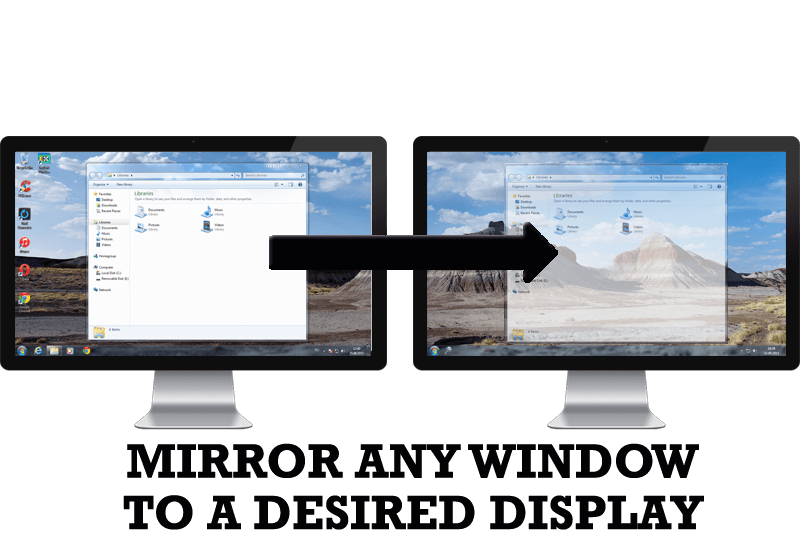
How to Mirror any Window to a Desired Display on Dual Monitors in Windows 8
Desktop Mirroring - additional feature for dual monitors in Windows 8. Mirror any window, application, monitor, or area in the special window on any display.

Actual Window Manager helps online stock and day traders work effectively
If you work with 8-10 applications, you are most likely to feel tired after an hour or two... This program is a complete solution for those who multitask in multiple applications simultaneously.

How to Play StarCraft 2 on Dual Monitors: Tips and Tricks
Get a better control on StarCraft 2 in a multiple displays environment with Actual Multiple Monitors.
