
|
|
Articles
Automatic Audio Playback Redirection
How to force any multimedia application to play its sound depending which monitor its window is on
Introduction
Today most of video displays connect to a PC via modern HDMI/DisplayPort interfaces that can transmit both video and audio information at once. Thus, you can connect a monitor or a TV with its own speakers, and that's great: single cable, single connector, single plug - and you get the full rich visual and audial experience with no fuss. Well, it's that simple, and you connect another monitor/TV (probably, located in another room). Now you've got a multi-monitor environment where you can toss windows between displays at will. You open your favorite media player, start playback of your favorite movie and send the player window to another monitor/TV. But wait, there's something wrong: you see the window playing a video on that monitor/TV but the sound output remains on the first one!
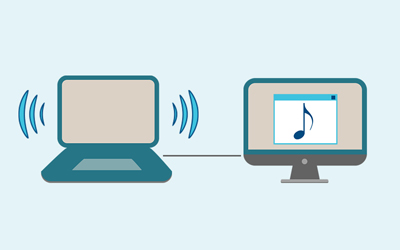
Figure 1. Sound does not follow picture by default
Why can't the system handle this simple and obvious scenario by default? Because of the flexibility of PC hardware architecture, where video and audio devices can be separate hardware pieces (and they were so years earlier), so Windows treats video processing chip and audio processing chip as independent devices with no relation between them (even though they are integrated into the same board of your video card).
Solution
Now Actual Multiple Monitors comes to help you restore that relation and solve the above-mentioned problem: it offers the Per-application Audio Device Switcher facility that, in particular, allows you to bind available audio devices installed in your system to connected monitors. After you specify the required bindings, the program will automatically redirect the audio output on a per-application basis, depending which monitor the sound-playing app's window is on.
Just install the latest version of the program, open its Configuration window and go to the Multiple Monitors - Audio Switcher panel. The interface is simple and intuitive:
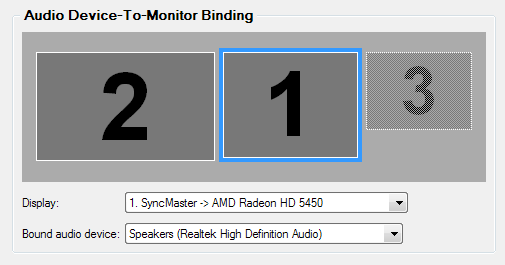
Figure 2. Binding audio devices to displays via the Audio Switcher configuration panel
- 1) select a monitor by clicking its numbered preview or in the Display combo box
- 2) select an audio device from the Bound audio device combo box with the list of available devices to bind to that monitor
- 3) repeat step 1 and 2 until all required audio devices get bound to required monitors
Click the Apply button, and now you're all set: moving a multimedia app's window to a certain display with speakers forces both video and audio playback get moved to that display (as any sane human can expect).
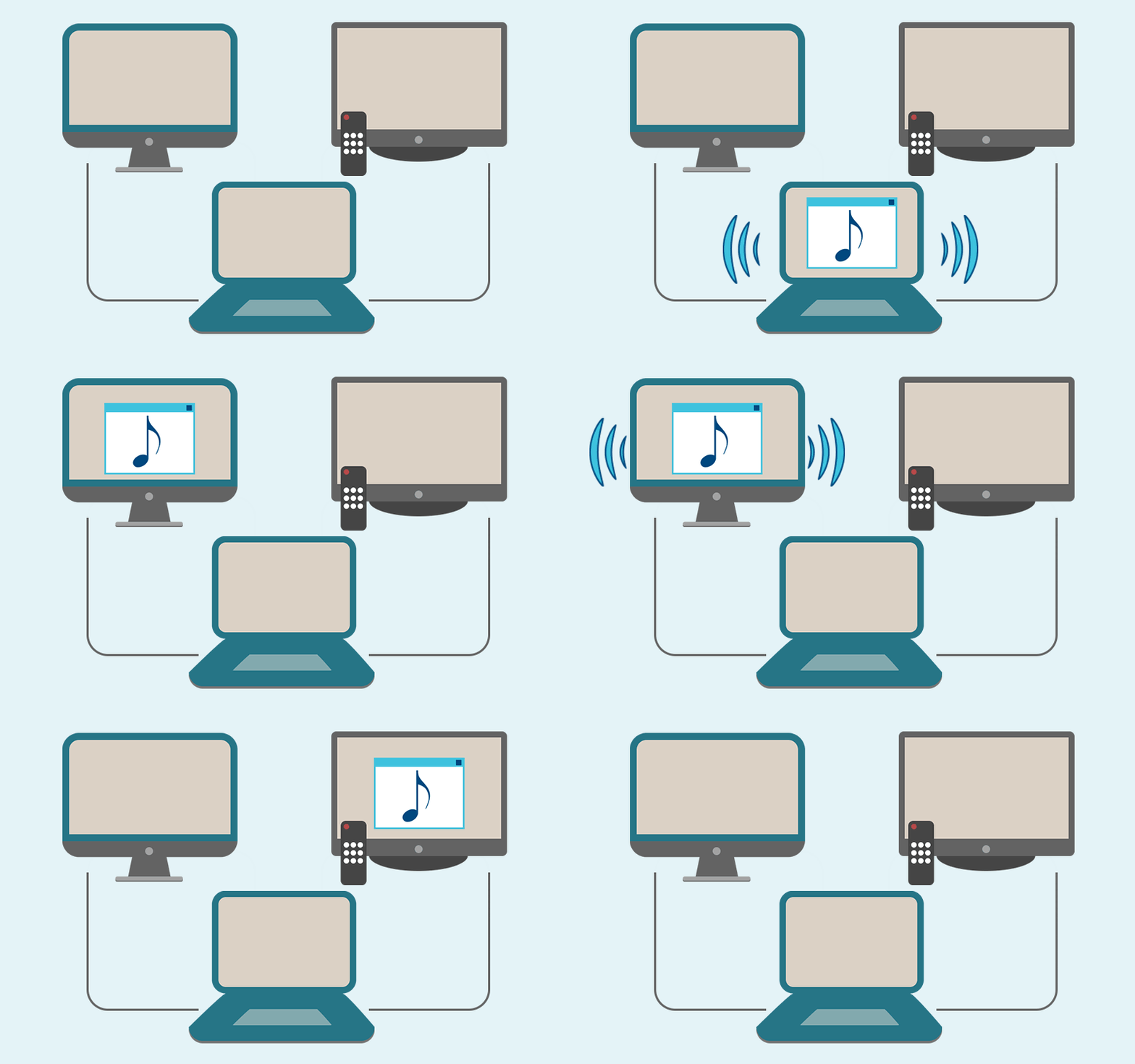
Figure 3. Now sound is redirected automatically
More Tools
In addition to this simple but indispensable solution, the Per-application Audio Device Switcher facility provides a rich set of sound management tools:
1) you can quickly switch the audio playback device for a certain application via a special title button or window menu command
2) you can create rules for specific applications and specify there a default device for audio playback once and for all
3) you can view currently running sound-playing apps and change their playback outputs in a simple and convenient Application Audio Manager window
Conclusion
Here we have reviewed a single aspect of multi-monitor experience - sound management. But Actual Multiple Monitors covers any other aspect with the same easiness and comprehension, whether it's task management, window arrangement, desktop look-and-feel, mouse handling, or gaming tricks. Come and try - we offer 30-day free trial version with no limitations, so you can check on your own each and every feature in real work!








Minimize Eudora e-mail client into system tray
Eudora is one of the well known and oldest e-mail clients. You can minimize Eudora into system tray or force it to stay on top of other windows with a single mouse click with Actual Title Buttons.
Maximize windows when they start
Automatically maximize Internet Explorer, Outlook Express or any other window upon opening!

How to Play Diablo 3 on Multiple Monitors: Tips and Tricks
How to prevent the unwanted minimization of the full-screen game? How to lock mouse in the game window? If you want to play Diablo 3 on multiple monitors, read this little article.

Transparency effect: Theory and Practice
Actual Window Manager can be used to solve many problems and is really multifunctional, but in this article we will enlighten one very interesting and convenient feature
-
Internet Explorer plus Actual Window Manager is a good choice!
Actual Window Manager will make your work with Internet Explorer and other applications extremely simple and convenient.

How to find a folder to which Skype saves received files and open it in 2 clicks
With the latest updates, Skype no longer prompts the user to save a file somewhere, but immediately saves all files to a specially designated folder, and finding the folder to move files fr om it to another directory, or open them with an application other than that set by default, is sometimes a difficult task.
We are present you the perfect solution to this problem-
Mozilla Thunderbird and Actual Window Manager will cope with any task
Sometimes we need to solve not ordinary tasks when working on computers. So, what shall we do? The most obvious answer is to find a program which will make your Mozilla Thunderbird suitable for any task.

The Most Popular Resources to Download Dual Monitor Wallpapers
Use this article to find cool dual screen wallpapers and personalize your dual monitor desktop.

Multiple Monitors – Complete Solution for Customer-oriented Activities
Use Multiple Monitors and Actual Window Manager software to solve problems in working with clients.

Use Actual Window Manager to hide SSH tunnels to system tray
If you use SSH tunnels to allow access through a firewall, or just to encrypt your communication, you might get sick of the proliferation of tasks littering your bar. It is very easy, however, to use Actual Window Manager to automatically clear these up.
