
|
|
Articles
Split the Windows® Desktop: How to Divide a Single Large Desktop into Multiple Smaller Ones
Introduction
Average size and video resolution of computer displays have been strongly increased in recent years. Therefore, desktop workspace has been increased too (especially when using multiple monitors). It allows working with several windows at the same time, and they will not overlap each other. However, to achieve such window allocation without overlapping, you will have to waste the most expensive thing in a work – the time.
That's why Actual Tools offers new decision for this problem for the users of Actual Multiple Monitors and Actual Window Manager – the new feature called Desktop Divider.
Desktop Divider
Desktop Divider allows splitting the desktop area into any number of adjacent non-intersecting zones – tiles. Each tile behaves like a small desktop within its own borders: if you maximize a window within the boundaries of the tile, window will span the tile's area.
As soon as you begin to drag a window, you will see the grid showing the tiles. There are several ways of maximizing a window onto a tile:
Aero Snap feature. Just drag the window to any boundary of the tile.
Standard Maximize button. Window will maximize to the tile, which contains the mouse pointer. To use it, enable the Maximize to Desktop Divider's tile item in the Actions panel of the Mouse page.
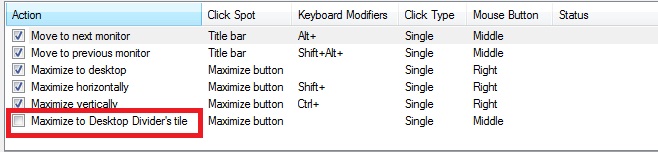
Maximize to Desktop Divider's tile via click on the standard Maximize buttonPut into Divider tile title button. Left-click this button to put the window into the nearest tile (next click will move the window to next tile). Right-click this button to invoke the special Tile Selector window where you immediately select a tile to put the window into. Also, you can select several adjacent tiles to stretch the window up to their combined area: click the left mouse button on the top-left tile of the supposed combined area and drag the mouse to the bottom-right tile holding the left mouse button pressed, then release the mouse button.
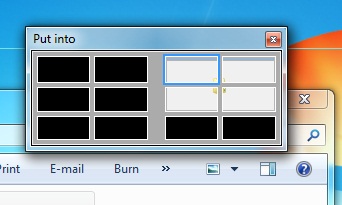
Desktop Divider's Tile Selector windowHotkeys. You can use hotkeys to move the window between tiles in the desired direction.
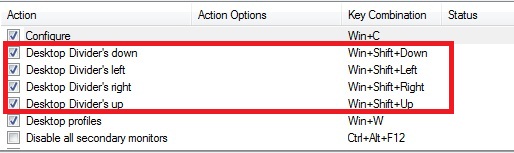
Desktop Divider hotkeys
You can activate or deactivate Desktop Divider as soon as you wish in one of two ways. First, with the Enable Desktop Divider check box in configuration window of the software. And second, selecting the Enable Desktop Divider command in the Windows Desktop's context menu. Desktop Divider can work in one of the following work modes:
Always Active - you can use the Desktop Divider each time you drag or maximize a window.
Active While the Modifier Keys Pressed - hold down the specified modifier keys when dragging a window to activate the Desktop Divider. Once you release the modifier keys, Desktop Divider feature becomes inactive.
Active While the Modifier Keys Not Pressed - same as Always Active but you can temporarily suspend the Desktop Divider by holding down the specified modifier keys. Releasing the modifier keys will activate the Desktop Divider back.
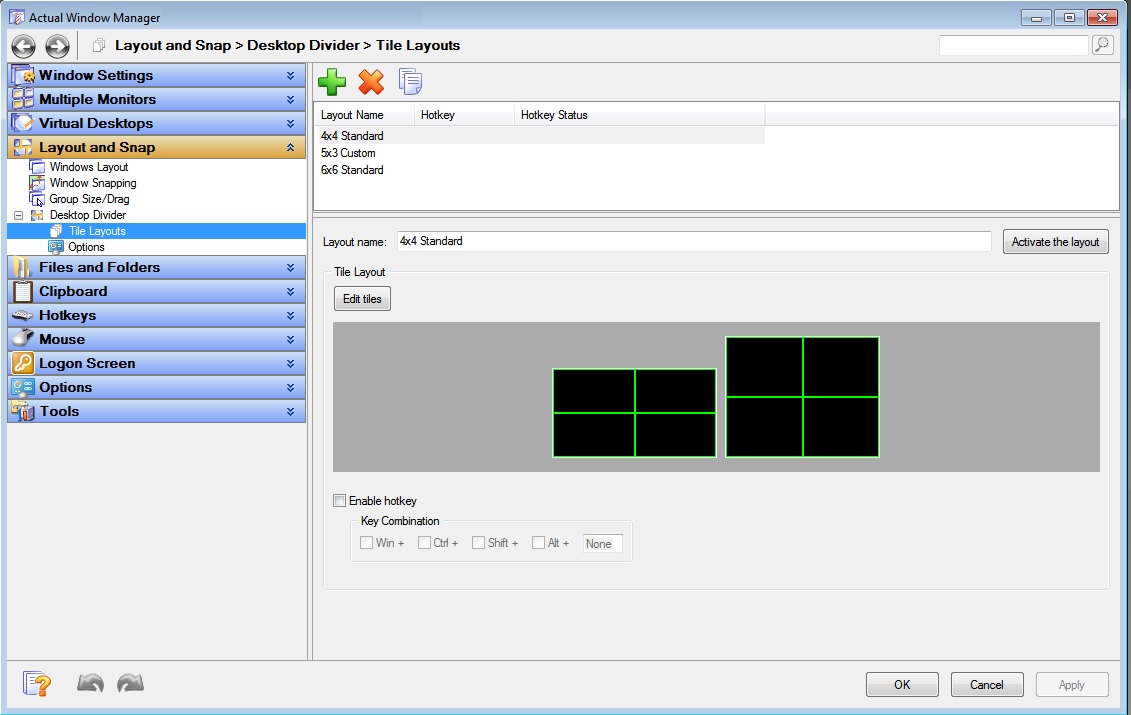
Configuring the Desktop Divider options and layouts
You can create as many tile layouts for your desktop as you need and then switch between them in as the circumstances require: activate the needed layout in the Actual Multiple Monitors Settings dialog using the Activate the Layout button, assign a custom hotkey combination to certain layouts or use the Desktop context menu.
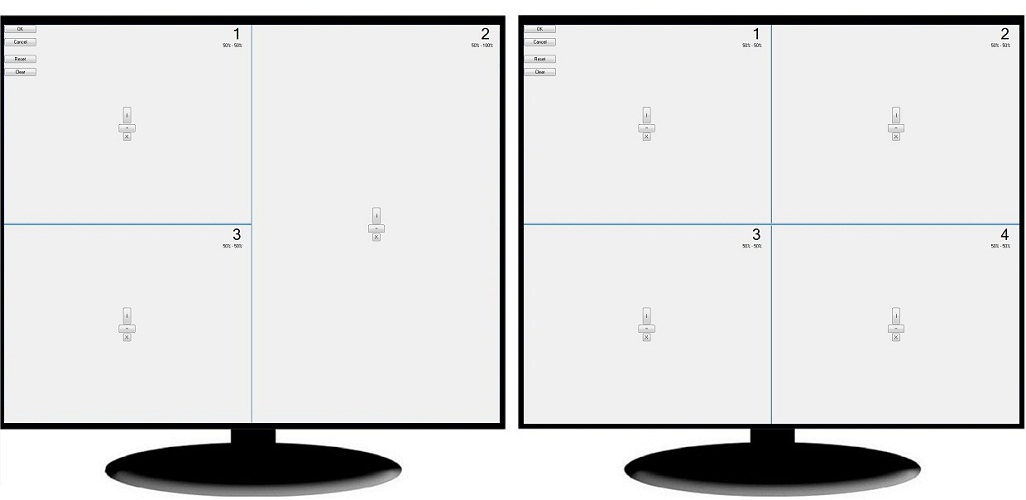
Layout Tiles Editor
3. Conclusion
Save your time and nerves with the new Actual Tools feature – Desktop Divider. Make your work easier and more pleasant.
Useful Links
Window Group Sizing and Dragging — Organize Your Workspace Easily
How to Get New Windows 10 UI Features in Windows 7/8
Desktop Divider: Use Cases
Split the Dual Monitor Desktop in Windows 8





Actual Window Manager helps online stock and day traders work effectively
If you work with 8-10 applications, you are most likely to feel tired after an hour or two... This program is a complete solution for those who multitask in multiple applications simultaneously.

Make the Work with Multiple Displays More Comfortable and Efficient with the Actual Multiple Monitors Software
Play games or watch fullscreen video on one display and do anything else on other display at the same time with the Actual Multiple Monitors software.
Actual Window Manager Now Supports Multiple Document Interface (MDI) Windows
Now, you can apply most Actual Window Manager features to any MDI windows.
Dual Monitors: Dual-Monitor Taskbar, Dual-Monitor Task Switcher and Other Multi-Monitor Enhancements
Actual Multiple Monitors will help you fix the drawbacks in Windows GUI when working with a dual-monitor system.

New Opportunities of Actual Window Manager 7.5
The new version of Actual Window Manager has been released. And this version offers a few new features.

Multiple Monitors – Complete Solution for Customer-oriented Activities
Use Multiple Monitors and Actual Window Manager software to solve problems in working with clients.

Auto-text functionality in Actual Window Manager
Performing routine actions is much easier now. Actual Window Manager provides the Clipboard Templates feature.
-
How to save your data from unexpected loss
Internet Explorer, Outlook Express, MSDN, Windows Media Player, Windows Explorer and Windows Messenger conversation programs won't help you restore the necessary material. What to do? - You ask. We answer - use our Actual Window Guard program.
How to Get New Windows 10 UI Features in Windows 7/8 with Actual Window Manager 8.3
Wanna new Windows 10 features in Windows 7/8? You can get them without upgrading, just use Actual Window Manager 8.3.
-
Improved Windows 8/8.1 Dual Monitor Taskbar
Multiple monitor support in Windows 8.1 contains only several new features, including a limited multi-monitor taskbar. This is not enough to make work with several displays convenient. That is why Actual Multiple Monitors provides a large set of different tools improving multiple-monitors environment. This is a best alternative to the native Windows 8.1 multiple monitor support.
