
|
|
Articles
Advanced Display Management of Windows 7 in Actual Multiple Monitors
1. Introduction
Windows OS has received more useful configure of multiple monitors with release of Windows 7. These were features such as Detect Monitors, Display Orientation, and Duplicate Displays to secondary monitors (within a single graphics card). To use this configuration dialog users need to call the setup window via the Control Panel or by right-clicking the desktop. But Actual Multiple Monitors has a window with all this functionality now, so users no longer need to open additional windows to change the settings every time they need it.
2. Display Settings
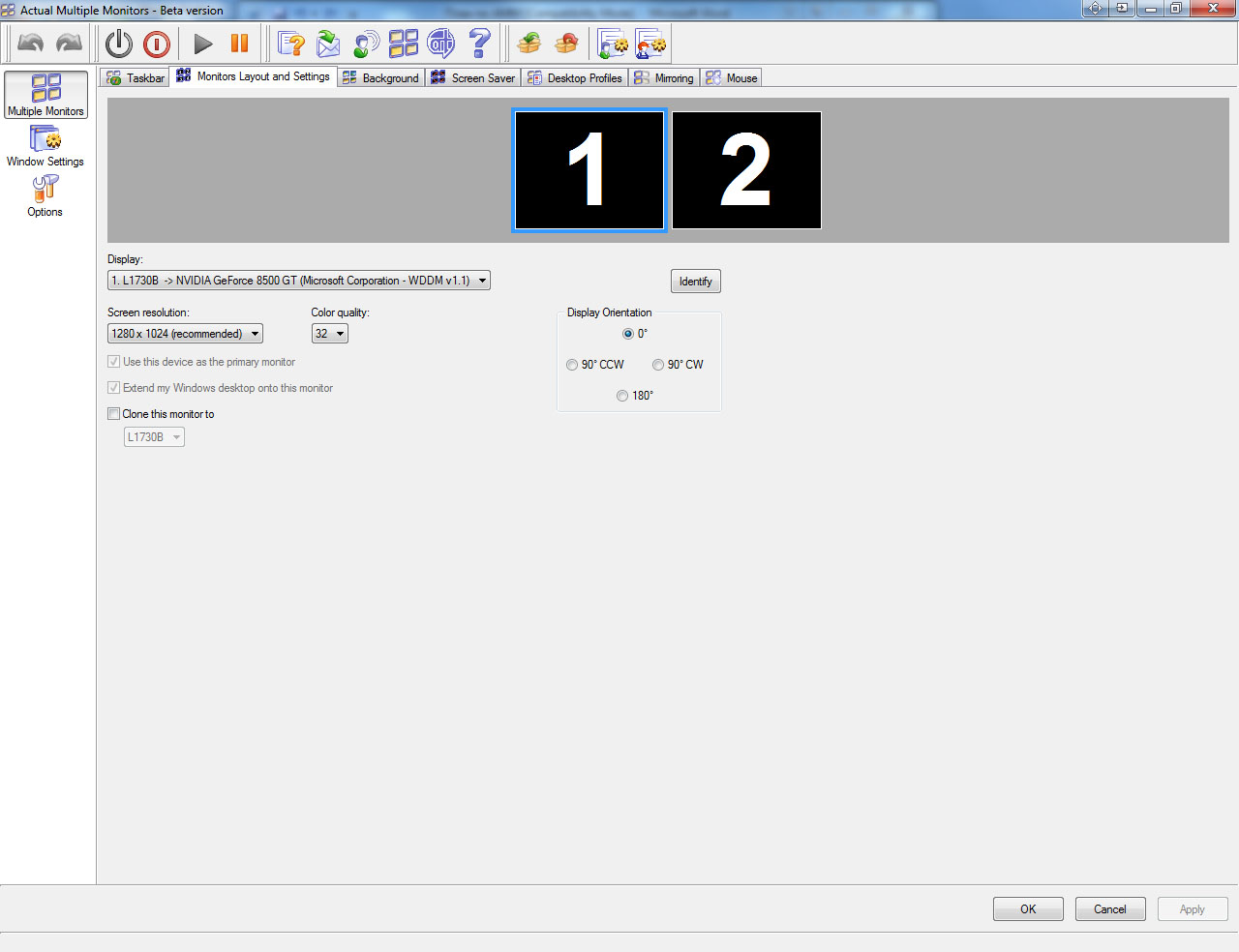
At the moment Actual Multiple Monitors implements these settings in a special tab 'monitor layout and settings'.
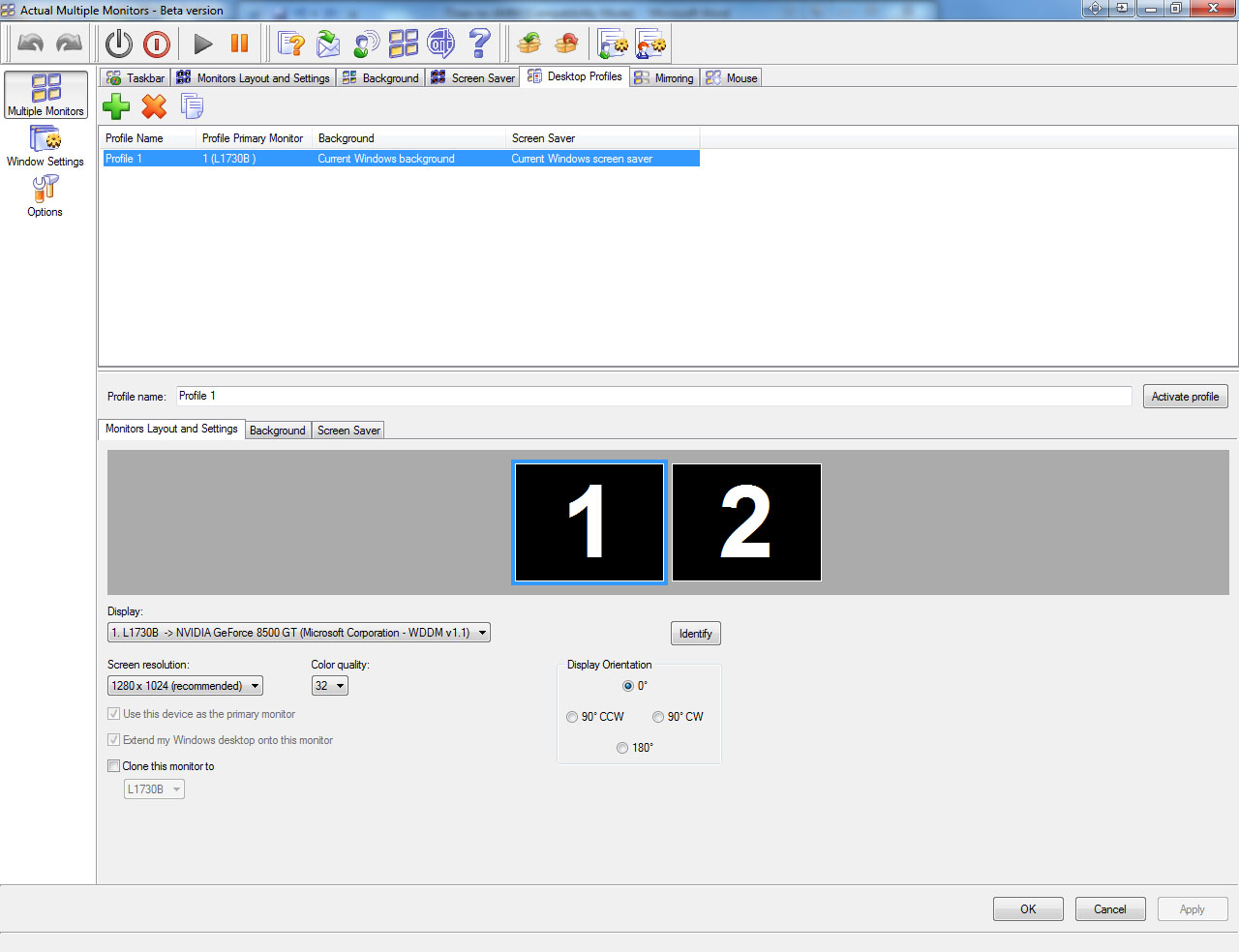
Also all these settings are available now when you create desktop profiles. Profiles allow quickly switching between saved settings for solving certain tasks. For example, the best choice for using a projector is duplicating a primary monitor to the projector. Another example of using desktop profiles is serves using profiles for working with several programs demanding different modes of monitors at the same time. Rotated to 90 degrees a widescreen monitor becomes immediately a display for reading documents, work with any programs more comfortable in this arrangement and etc. Also you can change profiles just for changing wallpapers and screensavers for your mood.
Actual Multiple Monitors software constantly develops, creating and adds new features for productive solutions any multi-monitor problems.
Exploitation of multiple monitors becomes more accessible and easier. Thanks to Actual Multiple Monitors your multi-monitors system increases its capabilities up to available today maximum.
It is also worth noting the appearance in version 3.2 of the Actual Multiple Monitors a new tab 'MOUSE', which lets you control the mouse settings for using on multi-monitors.
How to connect multiple monitors to your computer you can read in the article 'Set up Dual Monitors'




Resize windows: Simplify your web construction with Resize Window
The Resize Window control will help you resize any window in a flash: Right click on it and you will access the drop-down list of window sizes including 640x480, 800x600, 1024x768, 100%x100%, 50%x50%, 0%x100%, etc.
-
How to make your computer work faster
Adjust finely the priority of your programs with Actual Tools software.
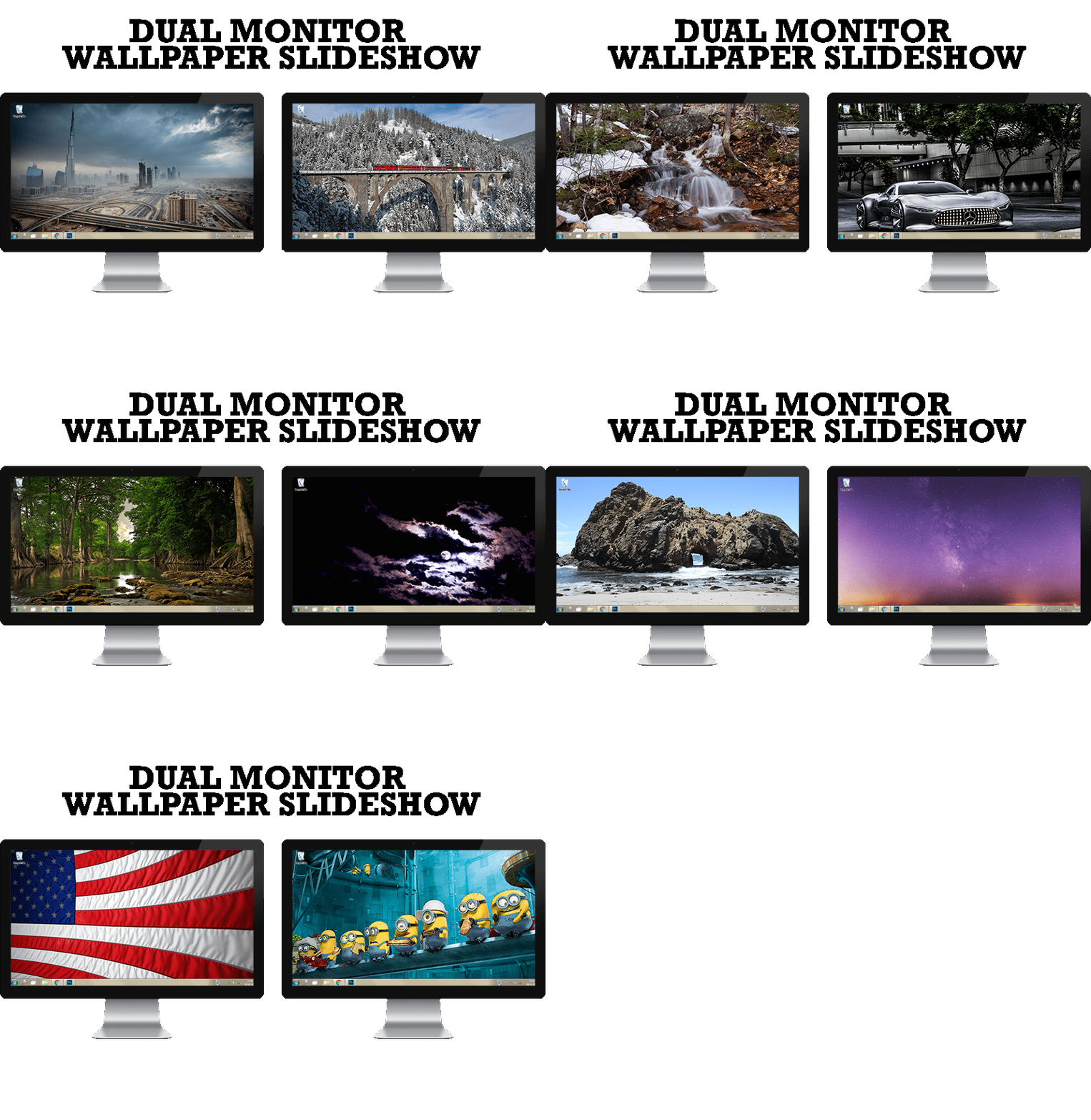
How to Set Up Dual Monitor Wallpapers Slideshow
Step by step guide to installing a slideshow mode on dual monitor.
-
How to keep size and position of windows
If you often use such folders as My Computer, My Documents, My Network Places etc. and want to open them where you indicate - our Actual Window Manager program is made for you!
-
Organize your desktop in a neat way!
Split your desktop into well-defined areas to keep your windows in a strict order.
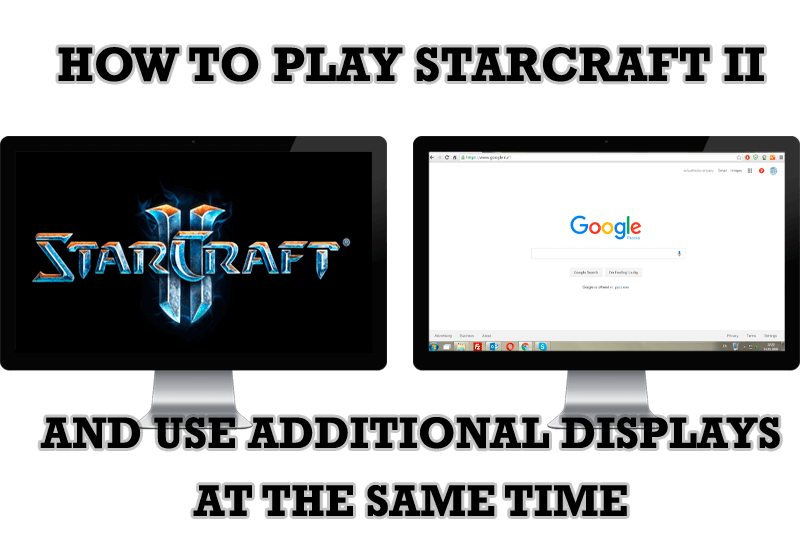
How to Play StarCraft 2 on Dual Monitors: Tips and Tricks
Get a better control on StarCraft 2 in a multiple displays environment with Actual Multiple Monitors.

Make Winamp and Winamp skins transparent
Make the basic Winamp skin or any of the optional Winamp skins semi-transparent .

Auto-text functionality in Actual Window Manager
Performing routine actions is much easier now. Actual Window Manager provides the Clipboard Templates feature.
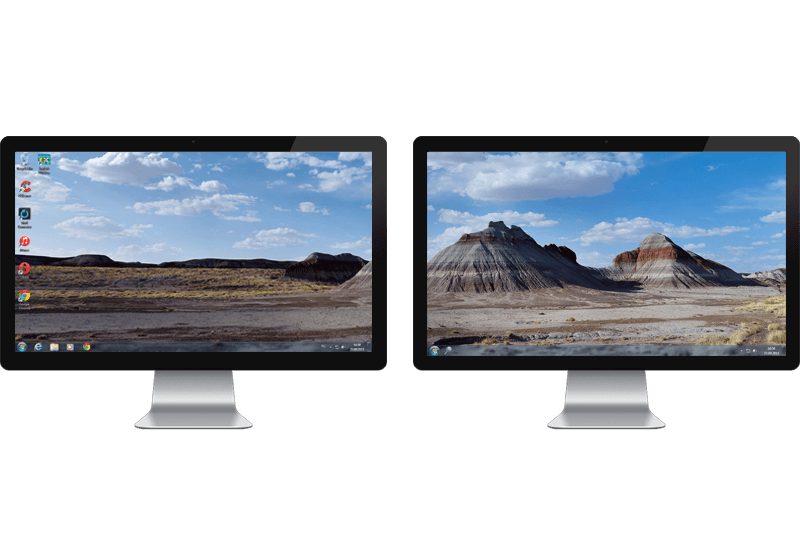
Improved Windows 8/8.1 Dual Monitor Taskbar
Multiple monitor support in Windows 8.1 contains only several new features, including a limited multi-monitor taskbar. This is not enough to make work with several displays convenient. That is why Actual Multiple Monitors provides a large set of different tools improving multiple-monitors environment. This is a best alternative to the native Windows 8.1 multiple monitor support.
Dual Monitor Set Up
How to Setup Dual Monitor.
