
|
|
Articles
Dual Monitors: Dual-Monitor Taskbar, Dual-Monitor Task Switcher and Other Multi-Monitor Enhancements
- Introduction
- Dual-monitor Taskbar
- Dual-monitor Task Switcher
- Dual-monitor Window Management
- Conclusion
1. Introduction
As technology advances with each year, PC displays are becoming cheaper and more compact. In tandem with this development, a growing number of PC users are taking advantage of the power of dual-monitor configuration. This can involve using a dual-headed video adapter, installing two video adapters together or connecting the second monitor via a special USB video hub.
Connecting a second monitor enables users to enjoy the advantages that dual displays provide: expanded screen space and a higher number of visible windows without overlapping. However, the use of two monitors can also lead to some minor but annoying drawbacks:
- Extra time involved in switching and allocating multiple windows between two monitors
- Increased chances of repetitive strain injury (RSI) due to moving the mouse cursor across an expanded desktop
- In both the older OS Windows 2000/XP or modern Windows Vista/7, it is necessary to transport the mouse cursor back to the primary display every time access to the Taskbar, Start Menu or notification area is required (which can exacerbate the above-mentioned RSI problem)
- When switching between windows using Alt+Tab, the Task Switcher window is only displayed on the primary monitor which can be inconvenient
- It is not possible to drag the maximized window from one monitor to another. Instead, it is necessary to restore the window to normal status first, then drag it to another monitor and maximize it there. This can involve a little too much mouse work for such a simple situation!
- The general Maximize button expands a window over its host monitor, which means there's no quick way to maximize a window over the entire composite desktop
Luckily, there is an all-in-one solution to all of these issues. Actual Multiple Monitors provides 3 extremely handy tools that make work with a dual-monitor system far more productive, easy and comfortable!
Back to top
2. Dual-monitor Taskbar
The Multi-monitor Taskbar facility is the most important enhancement of the Windows user interface in the dual display environment - it emulates the main Windows Taskbar services on the additional monitor. Therefore, it does not matter which monitor is used as both provide the same constant action to switch between open windows.
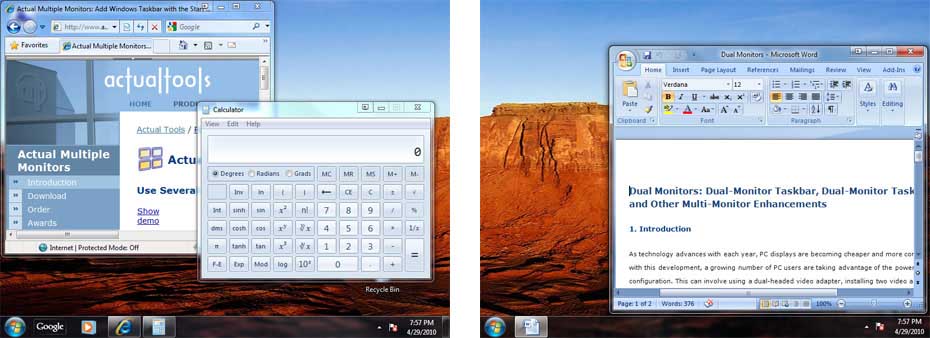
Multi-monitor Taskbar in the dual-monitor system
As you can see, the second taskbar displays all essential controls, such as Start button, notification area (also known as system tray), clock and any additional toolbars (like Quick Launch, Desktop, Address, Windows Media Player, etc.). It allows quick access to the contents of the Start Menu or system tray, irrespective of which monitor the mouse is currently on. Such a seemingly minor advantage as having the emulated Taskbar partnered by all necessary controls avoids the usual irritating mouse marathons across the desktop!
In addition, it is possible to choose between two different modes in which the secondary Taskbar can work: individual or mirror. Using the individual mode ensures that both primary and secondary Taskbars only display those windows located on the Taskbar's host monitor. For example:
- If a window is opened on the 1st monitor, that window has an entry in the Taskbar hosted on the 1st monitor
- If the window is then relocated to the 2nd monitor, its taskbar entry is also relocated to the 2nd monitor's Taskbar
In mirror mode, each open window has an entry in all Taskbars (i.e. all Taskbars display the same contents).
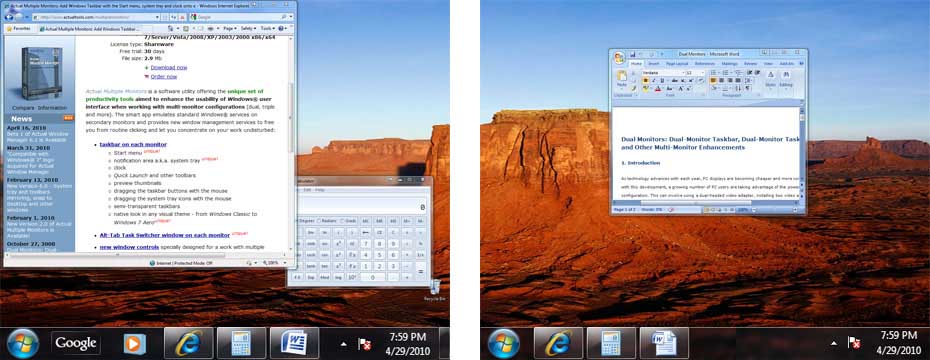
Multi-monitor Taskbar in the mirror mode
3. Dual-monitor Task Switcher
The Multi-monitor Task Switcher simultaneously displays the Task Switcher service window on both monitors. This avoids a user having to switch attention from the second monitor when hitting Alt+Tab.
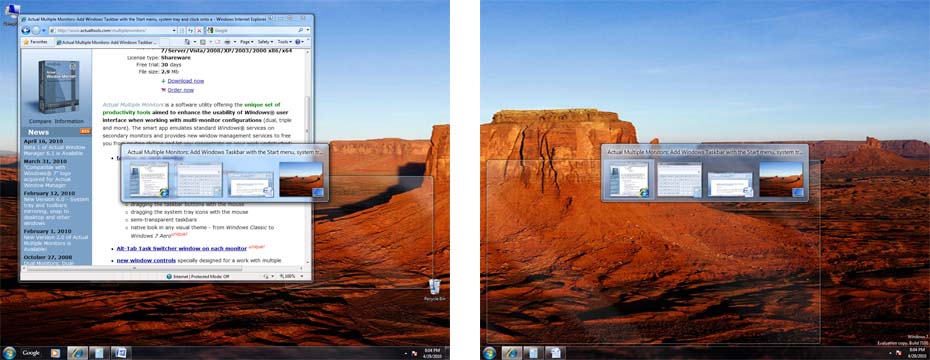
Multi-monitor Task Switcher
This function is simplicity itself. It's just another small but effective piece of the jigsaw that leads to a truly great development!
Back to top
4. Dual-monitor Window Management
Last but not least, the Actual Multiple Monitors can help resolve the problematic positioning of multiple windows within the widened dual-display of the Windows desktop. Windows itself fails to provide a solution other than the ordinary mouse-dragging technique. Actual Multiple Monitors provides a number of simple but neat little tricks:
The additional button
 is placed onto each window's title bar. A left-click of this button instantly places the subject window on the other monitor (i.e. if the window is on the 1st monitor it jumps to the 2nd, and vice versa). There is no need to manually drag it across the entire desktop!
Another benefit is that any window, whether maximized or not, can be moved in such a way.
Another smart trick is the "Move to monitor" item in the window's system menu which shows the list of monitors:
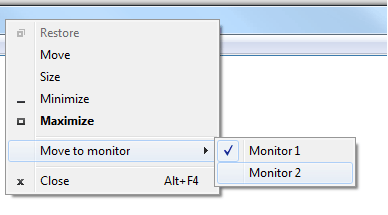 (the check mark denotes a window's current monitor).
Although it seems that this menu works in the same manner as the button but it's a supplement and not a replacement: this menu can be used when a window's title bar is inaccessible.
Example
Imagine that a subject window is on a monitor that is temporarily offline, and that window needs to be present in the visible desktop area. Just activate it by right-clicking the window's Taskbar entry and add it onto the operational monitor via the "Move to monitor" submenu!Finally - the icing on the cake: right-click the Maximize button of any window to maximize it over the desktop. The second right-click restores the subject window to its previous size.
All these features ensure that dual-monitor window management is as fast and convenient (if not more fast and convenient!), as single-monitor operation.
Back to top
5. Conclusion
As with any great development, dual-monitor configuration is a double-edged sword. However, Actual Multiple Monitors offers 3 expert advantages in its tool set that help compensate most dual-monitor disadvantages. By using the technology, it is possible to achieve the full power and productivity of the dual-display system. Just try the package and never again will you imagine a dual-monitor experience without it! Also you may read How to play StarCraft 2 on dual monitors.
Back to top





Improved Mouse Management in Windows 8
Actual Window Manager allows you to improve the mouse management in Windows 8 using many additional features.

Recent Folders & Favorite Folders - New Title Buttons for Convenient Work
In the new version of Actual Window Manager you're got the opportunity of using two new title buttons - Recent Folders and Favorite Folders. These buttons will make your work more convenient.

Add 'Minimize To Tray' feature to your favorite offline browser
If you usually switch to another application and work with it, while the offline browser is doing its job, it may be very convenient to minimize the program to the system tray or to any place of your screen and save taskbar space.

Optimize Adobe Acrobat Reader by means of new functional buttons
Such innovative functions as Make Transparent, Stay Always-on-Top, Minimize to Tray, Roll Up etc. will make your work with Adobe Acrobat Reader much easier and more productive.
-
Discover new commands in standard Windows menu
Standard Windows system menu is rather convenient and easy to get to (right mouse button click on window title bar), but sometimes it is not enough.
Desired Software for the Mouse on Multi-Monitor PC
Actual Multiple Monitors offers many useful features for the mouse on multiple monitors PC.
-
How to improve your work with any Notepad or Notepad replacement
Independently on the fact if you use standard Windows Notepad or some other Notepad replacement programs, you can significantly improve them by adding new functions of our product Actual Title Buttons.
-
Mozilla Thunderbird and Actual Window Manager will cope with any task
Sometimes we need to solve not ordinary tasks when working on computers. So, what shall we do? The most obvious answer is to find a program which will make your Mozilla Thunderbird suitable for any task.

Dual Monitors for Lawyers: Attorney’s Assistant and Actual Multiple Monitors
Learn more about the combination of dual monitors with lawyers software and Actual Multiple Monitors.
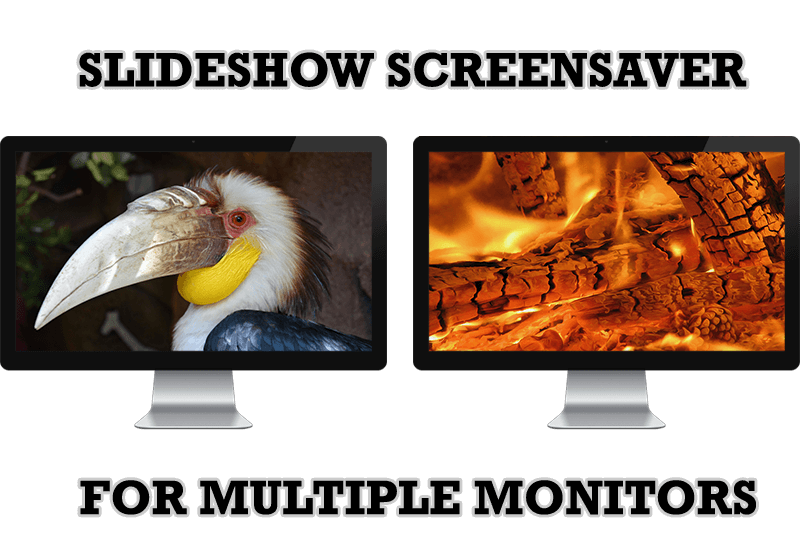
Meet the New Slideshow Screen Saver for Multiple Monitors
Actual Tools released the new slideshow screen saver for Actual Multiple Monitors and Actual Window Manager. This screen saver, in contrast to the default one, allows setting its own slideshow for each monitor.
