
|
|
Articles
IncrediMail: Enhance Your IncrediMail Letters With Actual Title Buttons!
- Introduction
- Getting Advantage of New Buttons
- Conclusion
- Actual Title Buttons Useful Links
- IncrediMail Useful Links
Introduction
IncrediMail is an advanced, feature-rich e-mail program which offers you an unprecedented opportunity to tailor your e-mail experience to match your mood, your personality and a special occasion.
The latest version, IncrediMail XE, boasts features unlike any other e-mail program, some of which are:
- Letters: you take full control over what your e-mails look like - you can add 3D effects, animations, emoticons and sounds
- Notifiers: vivid animated characters inform you when you have a new e-mail
- E-cards: you can send an e-card to your friends directly fr om your IncrediMail program
- Designs: you can even design your own letters using clipart, photos, or backgrounds
Better yet, if you have Windows XP or any other Microsoft Windows system, you can now add a whole bag full of even more delightful new features to your IncrediMail letters!
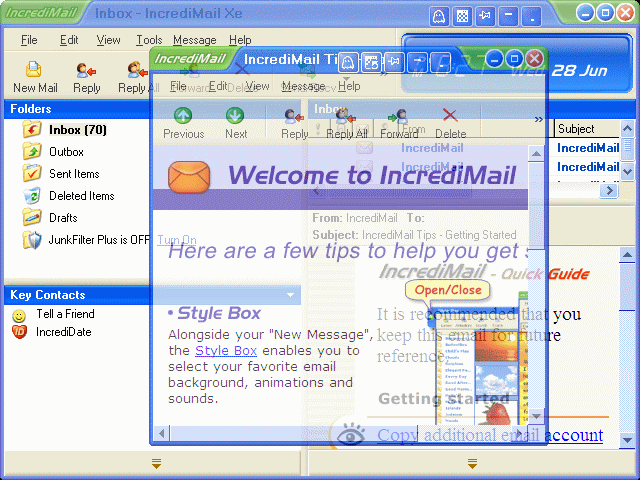
Actual Title Buttons allows you to add the new handy Minimize Alternatively, Stay Always-on-Top, Roll Up, Make Transparent and other additional buttons to any IncrediMail window's title bar. And it also works with any other program as well!
Getting Advantage of New Buttons
 Make Transparent button lets you toggle the transparency effect
for IncrediMail windows, ranging fr om 0% (opaque) to
100% (invisible) in Windows 2000/XP/2003/Vista/7/8/8.1/10. You can use this clever feature to view an application window beneath IncrediMail, this will help you by
immediately showing which windows are opened now, and where they are.
The transparency effect also forms a unique and very attractive appearance of your desktop, thus revealing its striking beauty.
Make Transparent button lets you toggle the transparency effect
for IncrediMail windows, ranging fr om 0% (opaque) to
100% (invisible) in Windows 2000/XP/2003/Vista/7/8/8.1/10. You can use this clever feature to view an application window beneath IncrediMail, this will help you by
immediately showing which windows are opened now, and where they are.
The transparency effect also forms a unique and very attractive appearance of your desktop, thus revealing its striking beauty.
 Stay Always-on-Top button helps a lot if you are concentrating on a letter and
if you want to avoid the distractions of other windows popping up
on top of your active IncrediMail window. It is extremely useful if you want to have IncrediMail on top, in such a way, that it is always accessible and couldn't be hidden by other windows. Also click this button when you need to add a link to some web-site or drag-n-drop some information from other windows to the text of your e-mail.
Stay Always-on-Top button helps a lot if you are concentrating on a letter and
if you want to avoid the distractions of other windows popping up
on top of your active IncrediMail window. It is extremely useful if you want to have IncrediMail on top, in such a way, that it is always accessible and couldn't be hidden by other windows. Also click this button when you need to add a link to some web-site or drag-n-drop some information from other windows to the text of your e-mail. Ghost button can be especially effective when used together with the above mentioned Make Transparent and Stay Always-on-Top functions if you don't need the direct interaction with the e-mail window. Now you will be able to monitor the text of the e-mail, while all mouse clicks directed at the contact list will bypass that window completely, allowing you to work with other more urgent windows.
 Send to bottom button lets you put the foreground window under all currently opened windows without closing it and maintaining its original size and position. It is especially useful when you don't currently require access to IncrediMail but plan on returning to it sometime later, e.g. when checking some data in an Internet browser, Microsoft Excel, Microsoft Word etc.
 Minimize Alternatively button lets you save the taskbar space by
hiding e-mail windows to tray or to virtually any place on your desktop when IncrediMail is not in use.
Just click the Minimize Alternatively button and the message window is minimized
to a small icon. Click the icon and it is restored and
ready to use!
Minimize Alternatively button lets you save the taskbar space by
hiding e-mail windows to tray or to virtually any place on your desktop when IncrediMail is not in use.
Just click the Minimize Alternatively button and the message window is minimized
to a small icon. Click the icon and it is restored and
ready to use!

 Roll Up button lets you minimize the IncrediMail window in such a way that only its title bar remains visible.
This is better than minimizing it to an icon because you won't have to hunt for the windows you were using!
Roll Up button lets you minimize the IncrediMail window in such a way that only its title bar remains visible.
This is better than minimizing it to an icon because you won't have to hunt for the windows you were using!
If you need to insert some information to the text of your e-mail we recommend you to use new
 Copy to Clipboard button to copy information from any text editor or an Internet browser to the Windows clipboard. Using this button (and its
  Paste from Clipboard relative) to operate with the clipboard is far more quicker than using the commands of the same name in window's Edit menu, especially when using such alternative input device as touch screen (for example, on Tablet PC).
 Move to monitor button is useful for placing IncrediMail windows to the desired monitor if you have several monitors connected to your computer. Just click it and IncrediMail will move to the next monitor. In other words, a window displayed on Monitor 1, moves to Monitor 2. No need to drag it manually to free the desktop space!
 Resize button lets you change the current size of IncrediMail windows on-the-fly, which might be useful in various situations, from checking some data in other windows to getting better view to the text of the e-mail. Right-click the button to get access to the wide range of predefined sizes or specify custom window dimensions yourself as circumstances require. Left-click the button again to restore the window to its previous size.
 Align button, as the name implies, provides the automatic horizontal and vertical alignment of IncrediMail windows in nine predefined alignment modes (just right-click the button). It might be useful when you need to copy-paste some information from Notepad or any other editor to the text of your e-mail. Now you will be able to position several message windows in the most convenient places on the desktop!
You can also minimize IncrediMail into a small icon, which is placed on the screen. You can drag this icon anywhere on the screen and choose its position and size. If you then double-click it, the default action is to restore the normal window and remove the icon from the desktop/screen.
Conclusion
Actual Title Buttons make your work with IncrediMail and other applications extremely simple and convenient. The new buttons are as easy to use as the standard Windows� Minimize/Maximize/Close and they make IncrediMail more user-friendly convenient and stylish. It is an ideal solution if you usually multitask in several applications.
Interested? Try it out, Actual Title Buttons is easy-to-use and very handy!
Actual Title Buttons Useful Links
See the following links that will be your guides in getting acquainted with Actual Title Buttons:
- Download the the fully-functional 60-days trial version of Actual Ttitle Buttons right now. It is completely free!
- Actual Title Buttons Home the official page wh ere you can download or order the risk-free version and read what users say about Actual Title Buttons.
- Actual Title Buttons Help section the full list additional buttons available in Actual Title Buttons
- Here you can find the information on how to create specific settings for IncrediMail or any other window.
IncrediMail Useful Links
- IncrediMail Home - IncrediMail official site wh ere you can download latest version of IncrediMail.
- Official IncrediMail Gallery - Largest gallery of letters, animations, sounds, e-Cards, and Notifiers for IncrediMail.
- Eye Candy IncrediMail Stationary - Beautiful IncrediMail letters in dozens of categories.
- Desktop Decor IncrediMail Letters - Find Christian letters, holiday letters, and many categories of general letters at this site.
- Bravenet IncrediMail - FAQ - find solutions to your IncrediMail questions here.
- IncrediMail Letter Creator Tutorial - the official tutorial for the IncrediMail letter Creator (design your own!).
Check out our articles. You can find other ways for using new title buttons and other features to make your work easier!





Actual Window Manager and transparent spreadsheets
Actual Window Manager can be used to solve many problems and is really multifunctional, but recently we have received a letter from one of our users with the certain problem. So, here it is: working with Microsoft Excel worksheets he wants to put an image under the spreadsheet list and make a picture of the screen.
How to Improve Your Internet Browser with the Help of Actual Window Manager
Actual Window Manager allow you to improve your Internet browser by many useful features for convenient work.
Get fully functional Recycle Bin on your Taskbar
Lear about how to put a fully functional Recycle Bin on your taskbar

How to Resize a Window to the Desired Size in One Click
Actual Window Manager provides an additional title button, which allows you resize a window to desired size in one click.
-
Find the best way to minimize Outlook Express to the icon in tray
Just one click on Minimize To Tray title button and Outlook Express is minimized to the system tray. Just another click on tray icon and Outlook Express is restored and is ready to use again!
Add 'Minimize To Tray' feature to your favorite offline browser
If you usually switch to another application and work with it, while the offline browser is doing its job, it may be very convenient to minimize the program to the system tray or to any place of your screen and save taskbar space.
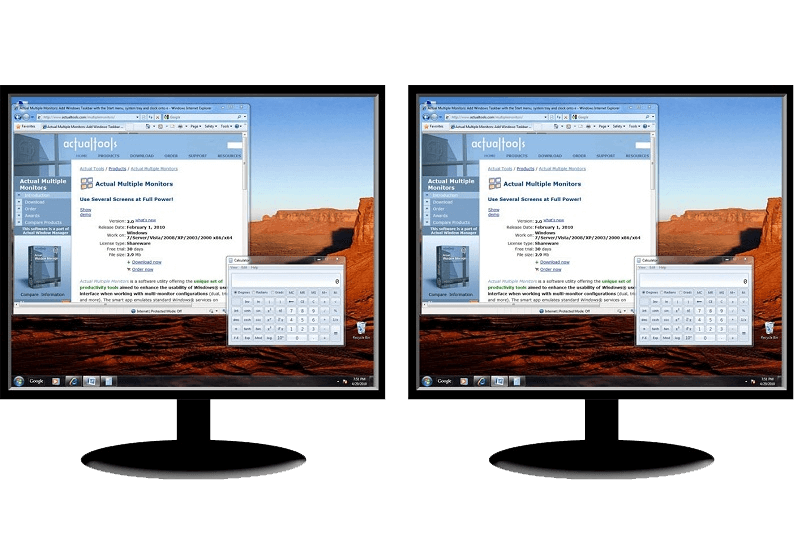
How to Clone Primary Display to Multiple Monitors with the Help of Actual Multiple Monitors
The multi-monitor cloning issue is finally resolved: Actual Multiple Monitors lets you clone a primary display to an arbitrary number of secondary monitors.
-
How can Actual Window Manager help multi-monitor users?
Get the full power of your multi-monitor configuration with Actual Tools!
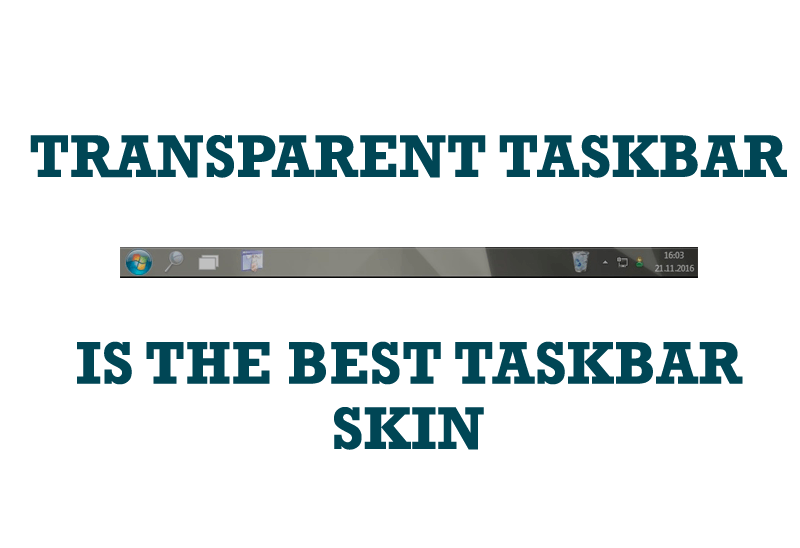
Transparent Taskbar is the Best Taskbar Skin!
If you have decorative wallpaper, or attractive desktop colors, Actual Transparent Window lets them through to keep your desktop work area beautiful!
-
Enhance Your Favorite ICQ Client with Actual Title Buttons
Find out new interesting ways to improve your ICQ instant messaging experience.
