
|
|
Articles
Multiple Monitors: Wrap the Mouse around the Desktop
Introduction
There are situations when you need to move the mouse pointer from the right edge of the monitor to the left edge (after closing a maximized application, for example). It may be very annoying, especially if you are obliged doing it hundreds of times every day (a wide-screen monitor makes it even worse).
The situation is more aggravating when you work with multiple monitors. You need moving the mouse pointer through several monitors (probably, wide-screen too), not one. Actual Multiple Monitors provides a robust and convenient solution for this problem – Wrap the Desktop feature.
This feature allows ignoring boundaries of all monitors. So, if the mouse pointer exceeds any boundary, it will appear on the opposite side of the desktop instantly.
How do you turn on Mouse Wrapping on multiple monitors?
To enable Mouse Wrapping, you need to open the Actual Multiple Monitors Settings dialog and find the tab, called Mouse.
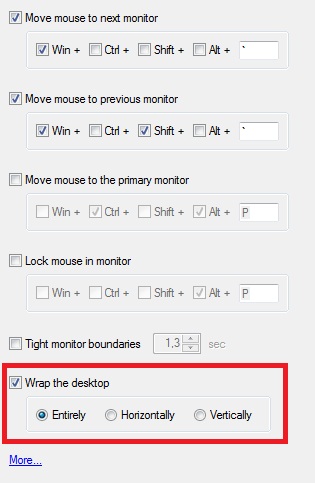
Find and check the option ‘Wrap the desktop’, among all others multi-monitor mouse settings. Also, you can sel ect the wrapping mode:
- Horizontally - removes the vertical boundaries. When the mouse pointer crosses the left boundary, it appears at the right boundary of the monitor, and vice versa.
- Vertically - removes the horizontal boundaries. When the mouse pointer crosses the top boundary, it appears at the bottom boundary of the monitor, and vice versa.
- Entirely - removes all desktops boundaries. This option combines the behavior of two previous options.
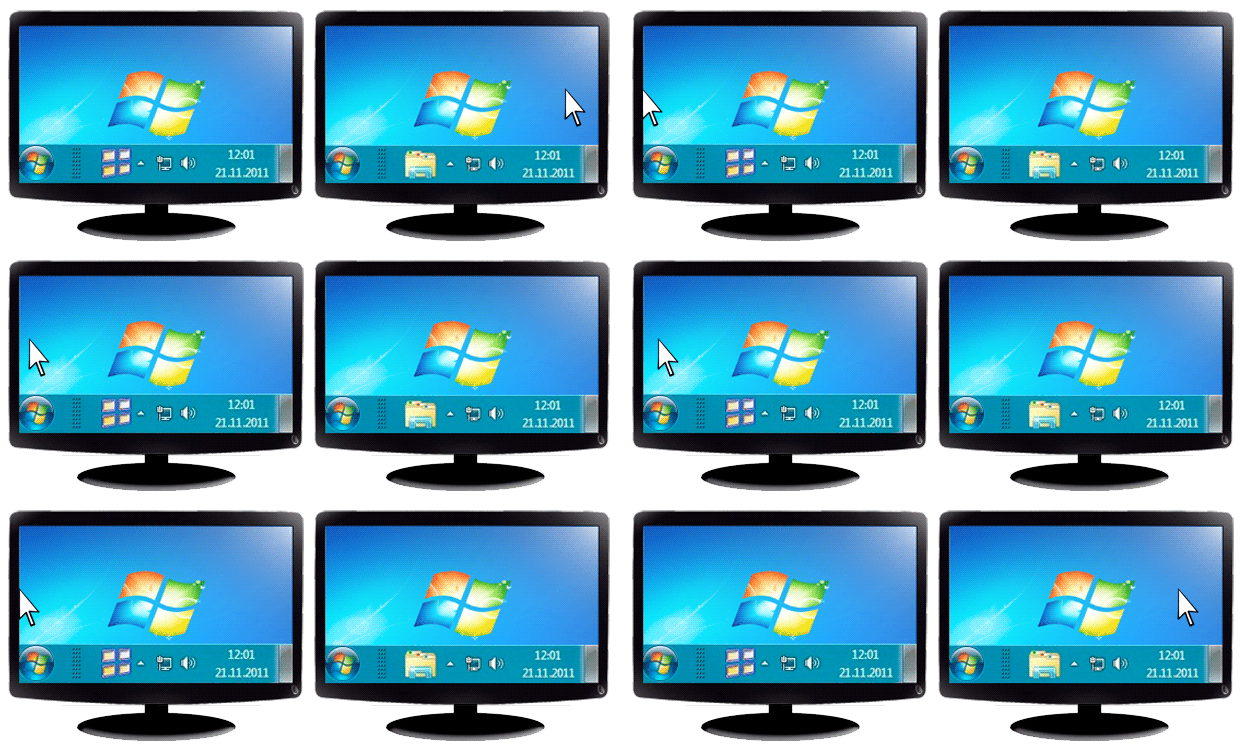
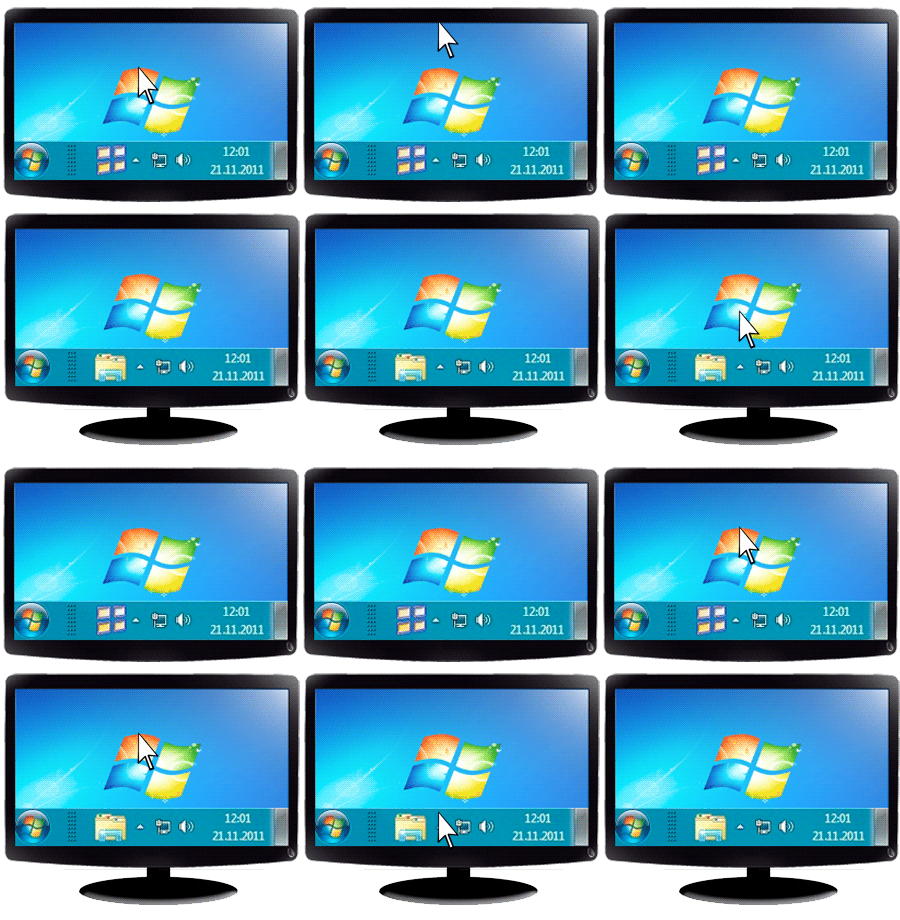
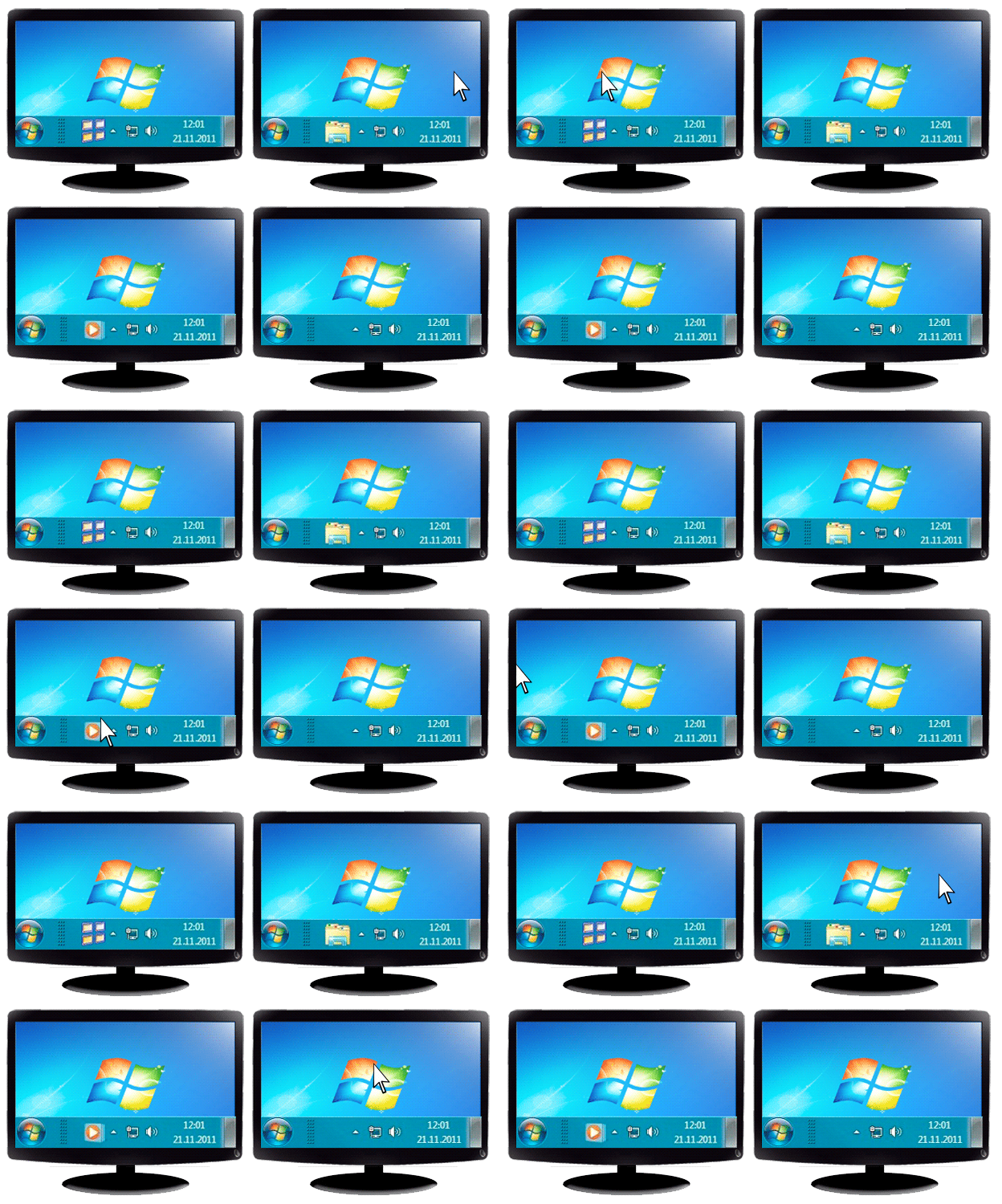
Since this moment, the mouse pointer will pass through the boundaries of your desktop.
3. Conclusion
In addition to Wrap the Desktop, Actual Multiple Monitors offers many other mouse options for multiple monitors:
- Tight monitor boundaries. The mouse pointer will be stopped on the border of monitors for preset time before going to the next monitor. This feature protects the mouse pointer from accidental moving to the next monitor. It solves the problem with intuitive click on the Close button of a maximized window, for example.
- Lock mouse in monitor. Mouse pointer will not be able to leave borders of the current monitor. This feature will be useful when working with full screen applications, because losing focus for a full screen application often leads to an automatic minimization of this application.
- Scroll inactive windows. You can scroll any inactive window with the mouse wheel while keeping your current application active. This feature will be useful for typing information in some program fr om a document that does not allow simple text copying (like images, scans, etc.).
- And much more…






Organize your desktop in a neat way!
Split your desktop into well-defined areas to keep your windows in a strict order.
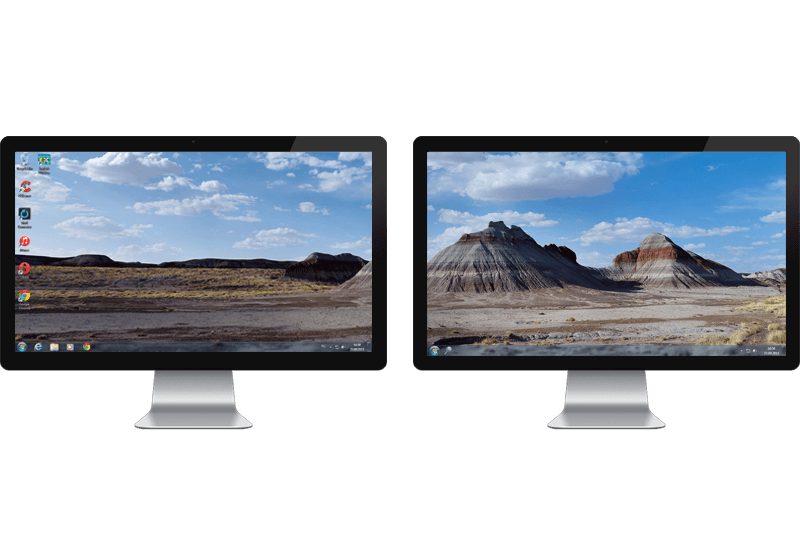
Dual Monitors: Dual-Monitor Taskbar, Dual-Monitor Task Switcher and Other Multi-Monitor Enhancements
Actual Multiple Monitors will help you fix the drawbacks in Windows GUI when working with a dual-monitor system.
-
Multiple Monitors: Wrap the Mouse around the Desktop
Remove the desktop boundaries with Actual Multiple Monitors.
Actual Window Manager - Great Tool for Windows 7 Users
Actual Window Manager 6.3 - the best tool to improving functionality of your Windows OS.
-
Actual Window Manager will make your Mozilla Firefox better!
As you know, Mozilla Firefox is a very convenient Web-browser. Though, like any other creation of the humanity it is not perfect. The most obvious answer is to find a program which will make your browser convenient and your work comfortable and simple.
How to Play StarCraft 2 on Dual Monitors: Tips and Tricks
Get a better control on StarCraft 2 in a multiple displays environment with Actual Multiple Monitors.
-
Find the best way to minimize Microsoft Outlook to the system tray
When a user works with several applications simultaneously, his/her taskbar is cluttered with windows and it is rather difficult to find a necessary one. Actual Window Minimizer can solve this problem by minimizing Microsoft Outlook windows either to the system tray or to any place on your screen in order to save some precious space in the taskbar.
-
Organizing Standalone Kiosk Access to Intranet with Actual Window Manager
Actual Window Manager will help you overcome the complications associated with the Intranet kiosk access.
-
Internet Explorer plus Actual Window Manager is a good choice!
Actual Window Manager will make your work with Internet Explorer and other applications extremely simple and convenient.

Mozilla Firefox and Dual Monitors: No More Problems
Have problems with Firefox on dual monitors? Actual Multiple Monitors will help to solve it.
