
|
|
Desktop Profiles Panel
Available in: Actual Window Manager, Actual Multiple Monitors.
The Desktop Profiles panel allows you create desktop profiles and adjust their properties:
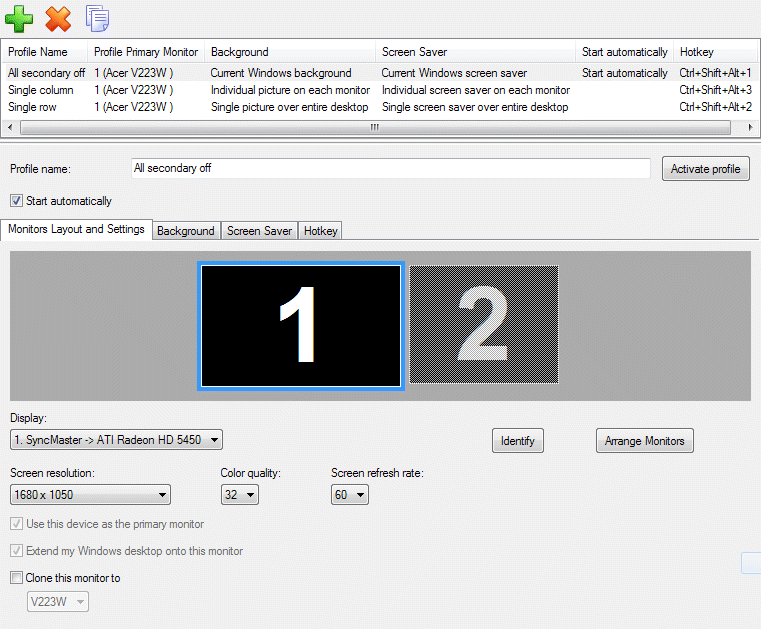
Desktop Profiles toolbar - is related to the Desktop Profiles list box and contains the buttons for the following commands:
 Add Item button
- click it to add a new desktop profile.
Add Item button
- click it to add a new desktop profile.
 Delete Item button
- click it to delete the desktop profile selected in the Desktop Profiles list box.
Delete Item button
- click it to delete the desktop profile selected in the Desktop Profiles list box.
 Copy Item button
- click it to add a new desktop profile which will be a copy of the desktop profile selected in the
Desktops Profiles list box.
Copy Item button
- click it to add a new desktop profile which will be a copy of the desktop profile selected in the
Desktops Profiles list box.
Desktop Profiles list box - shows the list of currently available desktop profiles and contains the following columns:
Profile Name column - displays the name of a profile;
Profile Primary Monitor column - displays the system name of a display adapter which defined as primary in the profile;
Background column - displays the profile's wallpaper mode defined in the Desktop Background Settings group;
Screen Saver column - displays the profile's screen saver mode defined in the Screen Saver Settings group.
Start Automatically column - indicates which profile will be started automatically at Actual Window Manager startup.
Hotkey column - displays the key combination assigned to a profile.
Hotkey Status column - displays the status of the hotkey.
Below the list is the group of controls allowing you to view and adjust the properties of the desktop profile selected in the list box:
Profile name edit box - here you can specify or modify profile's name. We suggest to specify significant and self-explanatory identifiers for new profiles telling about their purpose or specificity (for example, "Arrange horizontally", "2nd monitor off", etc.);
Activate profile button - click it to apply selected profile's settings to the system (you can also activate profiles either via Desktop Profiles popup menu, via Desktop context menu or from the command line);
Start automatically check box - mark it to activate the profile automatically when Actual Window Manager starts;
Note
Only one profile can be indicated as auto-startable.- Note
Settings defined on the tabs listed above won't be applied to the system immediately until you activate the subject profile. Hotkey tab - contains the following visual controls:
Enable hotkey check box - mark it to assign a custom key combination to desktop profile for its quick activation;
Key Combination group - contains the visual controls that allow modifying the assigned key combination (these controls work exactly the same as here).
