
|
|
Hotkeys Actions Panel
The Actions panel allows turning on/off the Hotkeys feature and assign particular key combinations for various actions provided by Actual Window Manager.
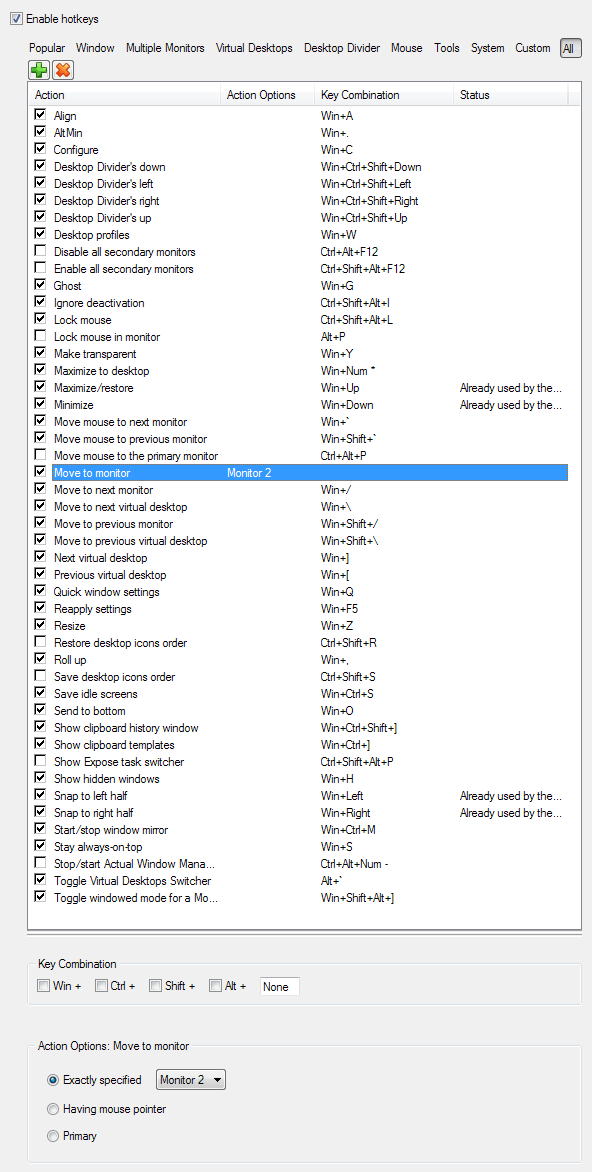
Enable hotkeys check box - mark it to turn on the Hotkeys feature in full.
Filters toolbar - lets to filter the Hotkeys list box by categories (Popular, System, Mouse, Custom, etc.).
Custom Hotkeys toolbar - relates to the Hotkeys list box and allows adding/deleting the custom hotkeys:
 Add button
- click it to display a popup menu with the list of actions allowed for custom hotkeys. Click on the required action's name
to add a new custom hotkey for that action, then adjust action options;
Add button
- click it to display a popup menu with the list of actions allowed for custom hotkeys. Click on the required action's name
to add a new custom hotkey for that action, then adjust action options;
 Delete button
- click it to delete the custom hotkey selected in the Hotkeys list box.
Note
Delete button
- click it to delete the custom hotkey selected in the Hotkeys list box.
Note
This command is enabled for the custom hotkeys only; other hotkeys cannot be deleted.
Hotkeys list box - shows the list of most usable actions and their assigned key combinations, allows turning on/off the particular hotkey using the check box on the left of action's name, and displays the current hotkey status: if everything is OK the status is clear, otherwise it warns you in case you already assigned this combination to another action ("duplicate hotkey") or the assigned combination is already used by other applications (including Windows® itself).
Here is the list of key combinations reserved by Windows® for various system actions: <Alt+Tab>, <Alt+Shift+Tab>, <Win+Tab>, <Win+Shift+Tab>, <Alt+Space>, <Alt+Esc>, <Ctrl+Esc>, <Ctrl+Shift+Esc> <Win+D>, <Win+E>, <Win+F>, <Win+L>, <Win+M>, <Win+R>. Assigning any of these key combinations to Actual Window Manager actions will result in "Already used by the system or other applications" warning.
Key Combination group - contains the visual controls which allow modifying the key combination assigned to the action currently selected in the Hotkeys list box:
Win + check box - mark it to include the special <Win> key to the current key combination
Ctrl + check box - mark it to include the special <Ctrl> key to the current key combination
Shift + check box - mark it to include the special <Shift> key to the current key combination
Alt + check box - mark it to include the special <Alt> key to the current key combination
Hotkey box - click it and then press the desired alphanumeric key to complete the combination.
Hint
To clear the box (i.e. set its contents to None), focus it and press any modifier key - <Shift>, <Ctrl>, or <Alt>.
