
|
|
Monitors Layout and Settings Panel
Available in: Actual Window Manager, Actual Multiple Monitors.
The Monitors Layout and Settings panel allows you defining the relative layout of displays and adjust their essential parameters:
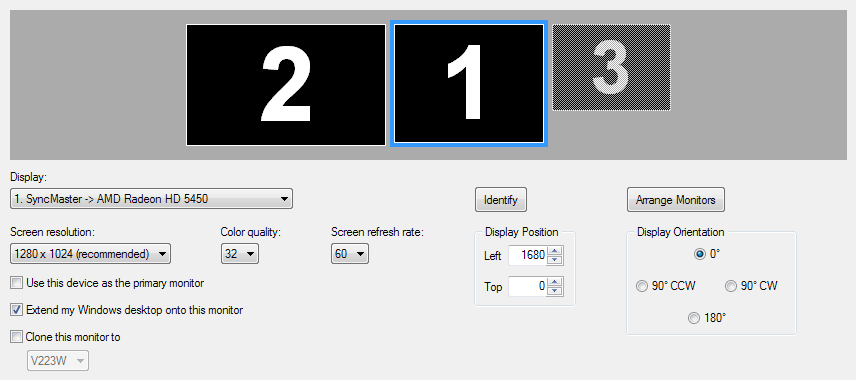
Display Layout control - displays the current layout of displays and their relative sizes and allows you either select a display device to adjust its properties or drag the selected display with the mouse to change its position within the desktop. Also, you can right-click the monitor preview to display its context menu;
Display combo box - shows the name of currently selected display device and allows selecting another device from the list;
Identify button - click it to display on each monitor its number for a short time;
Arrange monitors button - click it to open the special Arrange Monitors dialog;
Screen resolution combo box - shows the current screen resolution of the selected display and allows selecting another resolution from the list of resolutions supported by this display;
Color quality combo box - shows the current color depth in bits (either 8-, 16-, 24- or 32-bit depth) of the selected display and allows selecting another color depth from the list of depths supported by this display;
Screen refresh rate combo box - shows the current screen refresh rate of the selected display and allows selecting another refresh rate from the list of rates supported by this display;
Display Position group of controls - provides the ability to specify the exact display position (in pixels). This can be useful when you cannot set the desired position using the preview.
Display Orientation group of controls - provides the ability to customize the display orientation. Note: On systems before Windows 7 this group will appear only if your video card driver explicitly reports to Windows about its rotation capabilities in the form of advanced video modes added to the list of supported modes: it will contain such entries as, for example, 768x1024, 1024x1280, 1200x1600, etc. for the "portrait" orientation.
Use this device as the primary monitor check box - mark it to make the selected display device primary;
Extend my Windows desktop onto this monitor check box - mark it to include the selected display device into the composite desktop.
Clone this monitor to check box (Windows 7 only) - mark it to display the same image on both the selected monitor and its sibling monitor (which you can specify in the related combo box). Monitors are considered as siblings when they are attached to the same video card (i.e. your video card must have at least two outputs).
