
|
|
Screen Saver Panel
Available in: Actual Window Manager, Actual Multiple Monitors.
The Screen Saver panel allows you configure Multi-monitor Screen Saver:
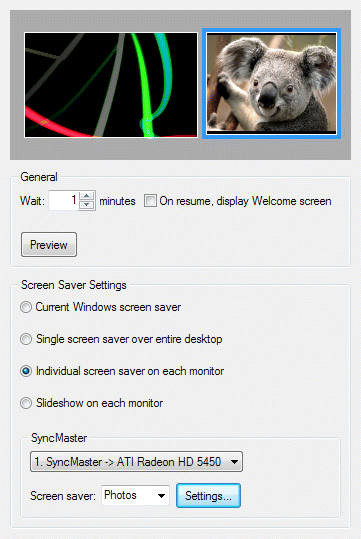
Screen Saver Preview control - displays the current layout of displays and the customized screen saver view in according to settings specified below on this tab;
Wait edit box - specify here how long (in minutes) the system should wait for user input (any keyboard/mouse activity) before activating a screen saver;
On resume, display Welcome screen check box - mark it if you want to protect your desktop from an unauthorized access when the screen saver shuts down: if this option is enabled the system will display the Welcome screen instead of your desktop after deactivating the screen saver;
Preview button - runs the Multi-monitor Screen Saver in a preview mode with the currently selected settings.
Current Windows screen saver radio button - select this option if you want to leave current Windows screen saver settings intact;
Single screen saver over entire desktop radio button - select this option if you have more than one monitor and want to stretch the desired screen saver over entire composite desktop;
Hint
This feature can be useful if you have two or more monitors of the same physical size and the same screen resolution, arranged side by side, and want to get the consistent screen saver view (as if you would have one large display).Note
If you have a single monitor - selecting this option is similar to selecting Individual screen saver on each monitor.Individual screen saver on each monitor radio button - select this option if you have more than one monitor and want to customize the screen saver on each monitor independently (as if it would be a separate desktop). In the related combo box you can see the name of currently selected display device and select another display from the list;
Slideshow on each monitor radio button - select this option if you have more than one monitor and want to run separate slideshow on each monitor independently. In the related group you can customize the slideshow properties for a certain monitor:
Slideshow playlist list box - use the buttons on the right of this control to add image files and folders with image files as slideshow sources or drag-n-drop the image files/folders onto this list box directly from Windows Explorer;
Random play order check box - mark this option to play the specified list of slides in random order, clear it to show the slides sequentially;
Search in subfolders check box - mark this option to traverse also the subfolders of the folders added to the list while composing the actual list of pictures; otherwise, search for pictures in the added folders only;
Change interval spin edit - specify here a delay (in seconds) between slide changes;
Wallpaper position combo box - here you should specify how to treat the picture when its size larger/smaller than the selected monitor's resolution:
center - center the picture within the monitor (better suits for smaller pictures) tile - tile the monitor with the picture starting from its top-left corner (better suits for smaller pictures) stretch - make the picture of the same size as monitor (suits both smaller and larger pictures) proportional stretch - same as "stretch" but keep the picture's original aspect ratio crop to fit - same as "proportional stretch" but use the smaller picture's dimension (results in filling the entire area with the central part of picture and cropping the rest) shrink to fit - same as "proportional stretch" but only for pictures that outsize the desktop/monitor, the smaller pictures are shown as is Color button - click this button to customize the color for those parts of background that are not covered by the slide picture.
Hint
This feature can be useful if you selected "center" or "proportional stretch" for slide position.
The mode settings group allows customizing the screen saver for the selected mode:
Screen saver combo box - here you can select any screen saver installed in your system;
Important note!
Not all existing screen savers are compatible with this feature. To be compatible, a screen saver must be able to run in a preview window.
If you select a screen saver and do not see it running in the preview control then it's incompatible, and you should select another screen saver.Settings... button - click this button if the selected screen saver exposes any additional options, and you want to customize them.
