
|
|
 Size Property Sheet
Available in: Actual Window Manager, Actual Window Guard.
The Size property sheet helps you to control in which ways the target window can be resized.
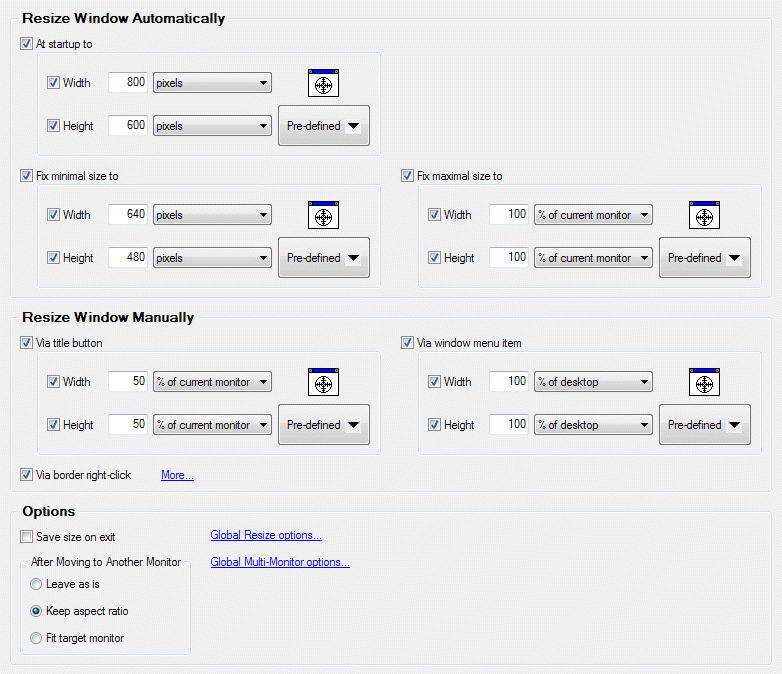
At startup to check box - mark it to resize the target window as defined at its startup.
Fix minimal size to check box - mark it to keep the target window not to be smaller than the defined size.
Fix maximal size to check box - mark it to keep the target window not to be larger than the defined size.
Via border right-click check box - mark it to enable target window's stretching by right-clicking its border parts.
Save size on exit check box - mark it to save the current target window size upon its closing and restore this size next time the target window will be opened.
After Moving to Another Monitor group - contains radio buttons allowing to define how target window's size should be adjusted when the target window is moved to another monitor:
leave as is radio button - size remains the same. This can be useful if all your monitors have the same resolution so no adjustment is required
keep aspect ratio radio button - if target monitor has a lower/higher resolution than the previous one then window will be reduced/enlarged appropriately so it will take the same relative amount of screen space on any monitor
fit target monitor radio button - keep window wholly within target monitor boundaries. If window exceeds these boundaries then it will be shifted towards target monitor's top-left; if it still exceeds the boundaries then its size will be reduced appropriately
Adjusting Window Size
You can define a particular window size by using the following standard visual controls:
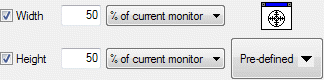
Width check box - mark it to consider the provided width value while applying the defined size
Width edit box - here you can type a value (zero or positive integer) in according to selected measure units
Width combo box - here you can select the desired measure units (pixels, percent of current monitor's width or percent of entire desktop's width) for a value typed in the edit box
Note
If you have only a single monitor then "current monitor" and "desktop" are equivalent.Height check box - mark it to consider the provided height value while applying the defined size
Height edit box - here you can type a value (zero or positive integer) in according to selected measure units
Height combo box - here you can select the desired measure units (pixels, percent of current monitor's height or percent of entire desktop's height) for a value typed in the edit box
Note
If you have only a single monitor then "current monitor" and "desktop" are equivalent.Window Finder icon - use this magic tool to retrieve actual values for both width and height from a particular window
Pre-defined button - click it to select the size from the list of sizes pre-defined at Resize Action options
