
|
|
Mirroring Panel
Available in: Actual Window Manager, Actual Multiple Monitors.
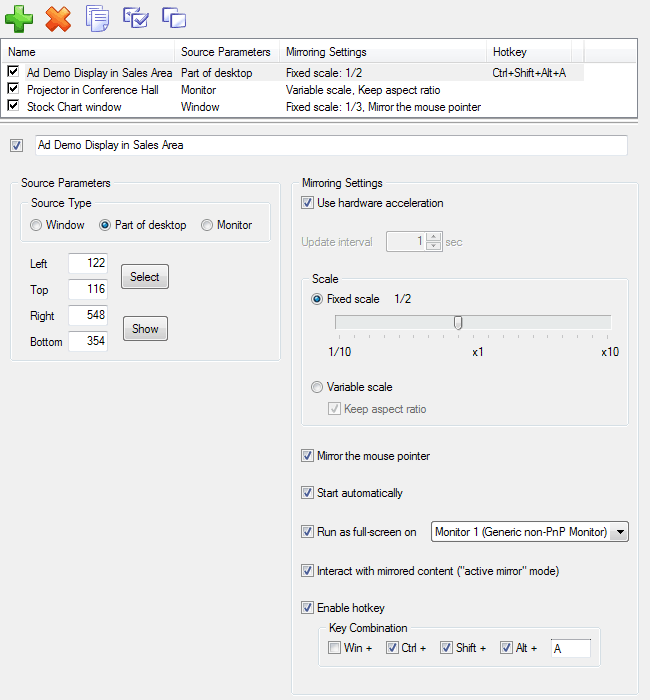
The Mirroring panel lets you create custom mirrors for various sources:
Desktop Mirroring toolbar - is related to the Desktop Mirroring list box and contains the buttons for the following commands:
 Add Item button
- click it to add new mirror
Add Item button
- click it to add new mirror
 Delete Item button
- click it to delete the mirror selected in the Desktop Mirroring list box
Delete Item button
- click it to delete the mirror selected in the Desktop Mirroring list box
 Copy Item button
- click it to add new mirror which will be a copy of the mirror selected in the Desktops Mirroring list box
Copy Item button
- click it to add new mirror which will be a copy of the mirror selected in the Desktops Mirroring list box
 Enable All button
- click it to enable all mirrors in the list
Enable All button
- click it to enable all mirrors in the list
 Disable All button
- click it to disable all mirrors in the list.
Disable All button
- click it to disable all mirrors in the list.
Desktop Mirroring list box - shows the list of created mirrors and contains the following columns:
Source Parameters column - displays the mirror's source type;
Mirroring Settings column - displays the mirror's settings;
Below the list is the group of controls where you can view and adjust the properties of the mirror selected in the list box:
Enabled check box - mark it to enable the mirror. Enabled mirrors are visible in Control Center's context menu and can be started/stopped from there;
Name edit box - here you can specify or modify mirror's name. We suggest to specify significant and self-explanatory identifiers for new mirrors describing their purpose or specificity;
Source Parameters group - here you can specify the source for the mirror:
Source Type group - here you can select the type of mirror's source. Depending on the source type, you must specify additional parameters:
Window radio button - select it to mirror certain window. Set the Target Window options to specify a window to mirror;
Part of desktop radio button - select it to mirror an arbitrary part of desktop. Set the coordinates for top-left and bottom-right corners of the area or select it with the mouse by clicking the Select button. You can visually check the specified area any time by clicking and holding the Show button;
Monitor radio button - select it to mirror the specified monitor. Select the monitor to mirror in the Source monitor combo box;
Mirroring Settings group - here you can adjust the parameters of the mirrored image:
Use hardware acceleration check box - mark it to utilize hardware video resources when rendering the mirror picture. This may provide the near-real-time performance for such graphics-intensive applications as video players, video games and other similar programs where high performance mirroring is required (actual performance depends on a particular video hardware and its drivers);
Note
Hardware accelerated mirroring is available only since Windows Vista and only when the Aero visual theme is active.Update interval spin edit - specify here how often (in seconds) the mirrored image will be updated;
Fixed scale radio button - select it to display the mirrored image with the fixed scale. Fixed scale means that resizing the mirror window will not affect the mirrored image. Use the related Scale slider to set the desired scale of the mirrored image. You can scale it up to 10 times, either to lesser or greater extent;
Variable scale radio button - select it to be able to re-scale the mirrored image by resizing the mirror window. Mark the related Keep aspect ratio check box to bind the size of the mirror window to the aspect ratio of the mirrored image; left this check box clear to allow the free sizing of the mirror window (however, it will distort the mirrored image);
Mirror the mouse pointer check box - mark it to duplicate the mouse pointer in the mirrored image;
Start automatically check box - mark it to open the mirror window when Actual Window Manager starts;
Run as full-screen on check box - mark it to make the mirror window occupy the entire visible area of the specified monitor. In the related combo box you can select a monitor to run the mirror on;
Interact with mirrored content ("active mirror" mode) check box - mark it to turn the mirror into a portal that will pass through the mouse clicks, pen drawing, and touch gestures to its source and therefore let you interact with the source directly;
Flip horizontally check box - mark it to make the mirrored image showing right-to-left;
Flip vertically check box - mark it to make the mirrored image showing bottom-to-top;
Enable hotkey check box - mark it to start/stop the mirror by pressing the specified hotkey. In the related Key Combination group you can specify the desired key combination (in the same way as here).
