
|
|
Target Window Pane
The Target Window pane contains visual controls that allow:
- enabling/disabling the window rule
- changing rule's name
- selecting which criteria will be used to determine the proper window or set of windows
- providing values for those criteria
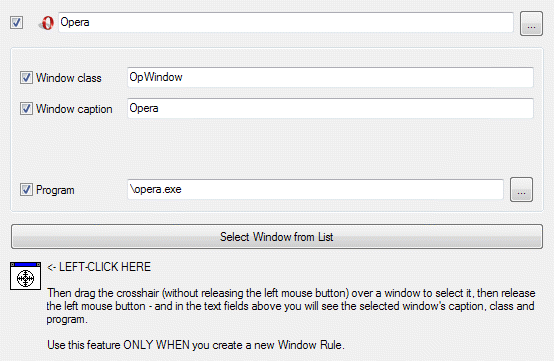
The first check box allows you enabling/disabling a rule. For the specific rule,
the use of this check box is similar to use of the check box near the rule's name in the Window Settings page.
The edit box allows you changing rule's name.
The ... button opens the special dialog window where you can change
additional rule's properties like Author and Description.
Window class check box allows you enabling/disabling the Window Class criterion. If it's enabled
its value will be used for Target Window determination.
Window Class edit box allows you specifying a string value for the Window Class criterion.
Note that this edit box is active only when its check box is checked.
Window caption check box allows you enabling/disabling the Window Caption criterion. If it's
enabled its value will be used for Target Window determination.
Window Caption edit box allows you specifying a string value for the Window Caption
criterion. Note that this edit box is active only when its check box is checked.
Related Exact match, Substring match radio buttons allow selecting one
of two simple comparison modes for a specified string; selecting the Regular expression radio button will treat
the specified string as a regular expression (the related Test
button opens the special Test Regexp dialog where you can check the
specified regular expression against any desired sample string to verify the expression's correctness).
Program check box allows you enabling/disabling the Program criterion. If it's enabled
its value will be used for Target Window determination.
Program edit box allows you specifying a string value for the Program criterion. Note that
this edit box is active only when its check box is checked.
The ... button opens a standard Windows® "Open File" dialog box where you can
conveniently select the desired executable file.
The Select Window From List button opens the dialog box of the
Window Selector magic tool.
The crosshair icon represents the Window Finder magic tool.
Use either the Window Selector or Window Finder
to fill the criteria values automatically, easily and accurately.
