
|
|


 Multi-monitor Taskbar
Even Windows 10 does not provide quality support for multiple monitors. For example, the multi-monitor taskbar of Windows 10 does not support the Clock, the Notification area (system tray), or the Pin feature.
What is more, the most popular OS, Windows 7, has no multi-monitor support at all. It still shows the taskbar on the primary display only:
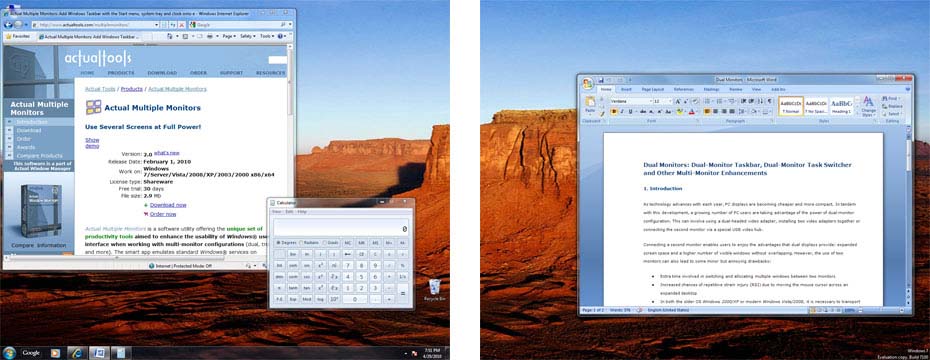
Figure 1. General Windows® Taskbar in a multi-monitor environment
Actual Multiple Monitors emulates the original Windows® Taskbar on each secondary display as well. With this extension, you can easily control the open windows (activate/minimize them, switch between them) in habitual manner, disregarding which monitor you are currently working with - primary or any of secondaries:
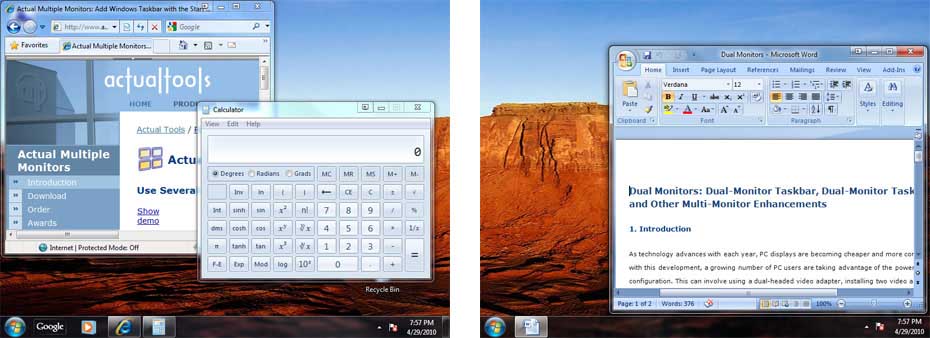
Figure 2. Multi-monitor Taskbar in individual mode
Multi-monitor Taskbar can work in three different modes: individual (default),mirror, and Mixed. In individual mode, each taskbar displays the buttons only for windows which are on the same monitor.
In mirror mode, all taskbars display all open windows no matter what monitor a particular window is on (i.e. all taskbars show the same set of buttons).
In mixed mode, the primary taskbar displays all open windows, but all secondary taskbars contain only relevant windows.
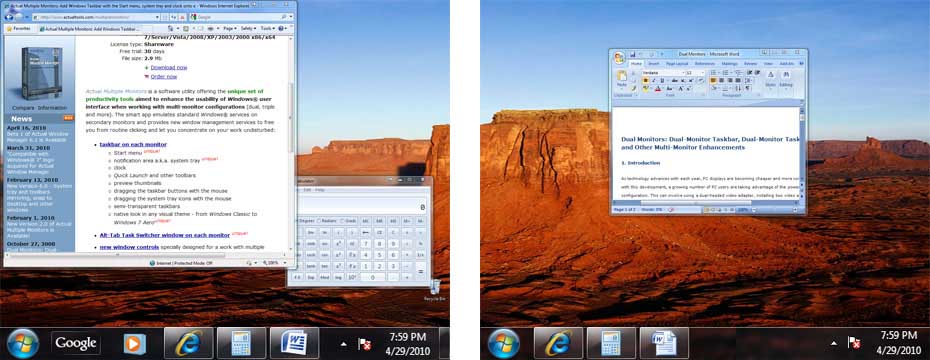
Figure 3. Multi-monitor Taskbars in mirror mode
Each secondary taskbar looks like a full replica of the main Taskbar: it has a copy of such essential controls as the Start button, the notification area (a.k.a. system tray), the clock , the Recycle Bin and any of the primary Taskbar's toolbars (Quick Launch, Address, Desktop, Windows Media Player and so on). This will save you a lot of time by eliminating redundant mouse marathons from secondary monitors to the primary one and back when your work focus is on a secondary monitor and you need to launch some program from the Start Menu or Quick Launch bar, to access some background program's icon in the notification area or open the Date and Time properties dialog by double-clicking the Clock control. Also, secondary taskbars support the smart Windows 7 Pin feature (not only under Windows 7 itself but on all supported platforms since Windows 2000!) and are able to group similar taskbar buttons in the same way as the primary taskbar does.
If you are using Windows 7 - you can take advantage of its new taskbar features on secondary monitors as well: each secondary taskbar has the Show Desktop button, supports Jump Lists, shows a progress bar on taskbar buttons when appropriate, allows to pin buttons by drag-n-drop, displays the colorized highlight for a button under the mouse and gives multiple previews for tabbed browsers. Also, you can use the Custom Taskbar Groups feature. It allows you to add different windows in one tab on the taskbar and manage all windows together.
Once you enabled the Multi-monitor Taskbar extension, you can easily toggle some of above options (and the related Task Switcher extension) via secondary taskbar's context menu:
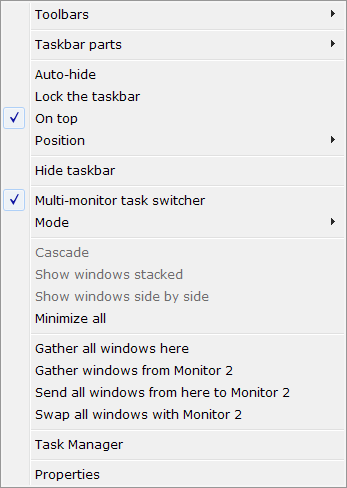
Note that you can lock secondary taskbars or force them auto-hide in the same way you do with the primary taskbar. Locked taskbars cannot be moved or sized (that prevents the accidental change of their placement), automatic hiding can save you some valuable screen space for your applications. You can turn on/off the "Lock" and "Auto-hide" options individually for each secondary taskbar. Also, there are commands to manipulate several windows at once ("subject monitor" mentioned below is the monitor where you invoked particular command):
Minimize all/Restore all commands - if you are using the individual mode then you can quickly minimize all open windows on the subject monitor and restore them back in a single click (in mirror mode windows will be minimized/restored on all monitors at once)
Hint
Under Windows 7 you can also use the native Aero Shake feature to minimize all windows on a particular monitor.Gather all windows here command - puts windows from all monitors onto the subject monitor
Get here all windows from command/submenu - retrieves all windows from a specified monitor and puts them onto the subject monitor
Send all windows from here to command/submenu - transfers all windows from the subject monitor to a specified one
Finally, taskbar's context menu lets you quickly set taskbar's position in a monitor (left/top/right/bottom edge) and launch the Windows Task Manager. Taskbar positions are stored independently for each monitor.
In addition to all above-mentioned, there are some extra usability features:
You can manually re-order taskbar buttons and system tray icons on secondary taskbars as well as on the primary one - simply dragging them with the mouse;
If you are still using Windows XP/2003 - you may find useful the Window Thumbnails service which was presented in Windows Vista: each time you place the mouse pointer over any taskbar button, the reduced copy of that button's corresponding window is displayed along with the regular tool tip. This service highly increases the recognition of minimized windows without the need to restore them.
Note
Applications that were written with no accurate conforming to the rules of development for Windows may be incompatible with this service.Hint
Under Windows 7 previews support the native Aero Peek feature.Nifty little addition for those who prefer such visual themes as Windows Classic or XP Blue/Green/Silver and use the multi-row view of Taskbar is the ability to stretch the Start button out to the full taskbar's height/width (depending on whether it is placed horizontally or vertically). This fixes the usability flaw of the Start button by eliminating the need to aim it precisely - when it is stretched out to the taskbar, you can quickly throw the mouse to that corner and click the left button being assured you will hit the Start button!
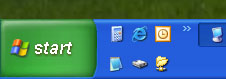
Figure 6. Start button stretched out to the multi-row TaskbarYou can replace the main Taskbar with its Actual Tools implementation to use the advanced features (like Pin or group window movement commands) on a primary monitor too.
The final touch is the ability to make all taskbars transparent to view the background picture behind them!

|

|
