
|
|
[actualtools.com] New beta versions
If you have problems viewing this letter in your e-mail program then you can try to open it in your web browser by copy-pasting the following link into browser's "Address" box: http://www.actualtools.com/about/newsletter_examples.php?id=60 |
| ||||||||||||||||
|
Hello, John Smith. I'm glad to inform you that our Beta Testing section has been updated: beta 2 of Actual Window Manager 6.2 and Actual Multiple Monitors 2.3 are available there for downloading and testing. Both betas contain almost the same set of changes related to the advanced functions for multiple monitors: they provide the improved implementation of button grouping on secondary taskbars introduced in beta 1 and also offer some other fixes and improvements (see the table of contents below). Important Note! Right after releasing beta 2, some bugs have been discovered and fixed. If you downloaded beta 2 on July 25 - I strongly recommend you to re-download and re-install this beta upon receiving this newsletter.
Issue contents:
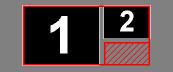
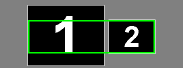
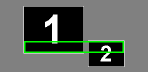
Maximize to Desktop ImprovedInitial implementation of the Maximize to Desktop feature stretched windows out to the entire desktop, without taking into account the relative layout of displays, which might produce unwanted results, as shown below:
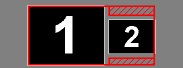
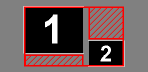
New implementation fixes those drawbacks and produces more consistent results:
Also, the new implementation considers the taskbars, so the maximized windows do not cover them or fall under them (note: this is true for locked taskbars only).
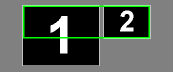
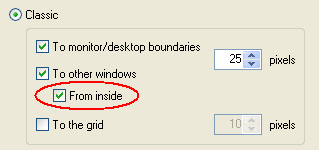
Classic Snapping ImprovedClassic Window Snapping has got two useful additions. First, now you can enable snapping to other windows from inside:
Also, you can temporarily disable the auto-snapping of a dragged window by pressing and holding the Ctrl key.
New Hotkeys: Lock Mouse and Ignore DeactivationThe Lock Mouse hotkey (Ctrl+Alt+Shift+L by default) locks the mouse pointer within the bounds of a window active at the moment. This may be useful when you work with some full-screen application on one of the monitors, and this application automatically minimizes when you accidentally move the mouse to another monitor and click outside its window. Click the Lock Mouse hotkey to ensure that the mouse pointer will stay within that window and will never go out of it accidentally. To free the mouse pointer, click this hotkey again. The Ignore Deactivation hotkey (Ctrl+Alt+Shift+I by default) forces the currently active window ignore the "focus lost" notification from the system, so the window's host application continues to "think" that window remains active. This may be useful when you want to run a full-screen video on one monitor while working with other windows on another monitor. Unfortunately, most media players automatically exit the full-screen mode upon losing the focus (i.e. when you click outside the media player and activate another window). Click the Ignore Deactivation hotkey while media player is active to block media player's reaction on losing the focus and forcing it remain "active" when you switch to another window. To restore the normal operation of media player, activate it and click this hotkey again. These new features are experimental: we are trying to provide some solutions for specific multi-monitor situations. Please, send us any ideas on possible applications of these features and share your experience (no matter positive or negative) of their using.
That's all at the moment, thank you for your time! Waiting for any kind of feedback from you at our Beta Testing forum section - you are always welcome! Yours sincerely,
| ||||||||||||||||




DISCLAIMER: THIS IS NOT SPAM - you received this email because you subscribed for the Actual Tools newsletter some time ago. If you do not want to receive news from Actual Tools anymore, please send an empty message to unsubscribe@actualtools.com.
|
