
|
|
Exclusions Pane
The Exclusions pane contains the following functional areas:
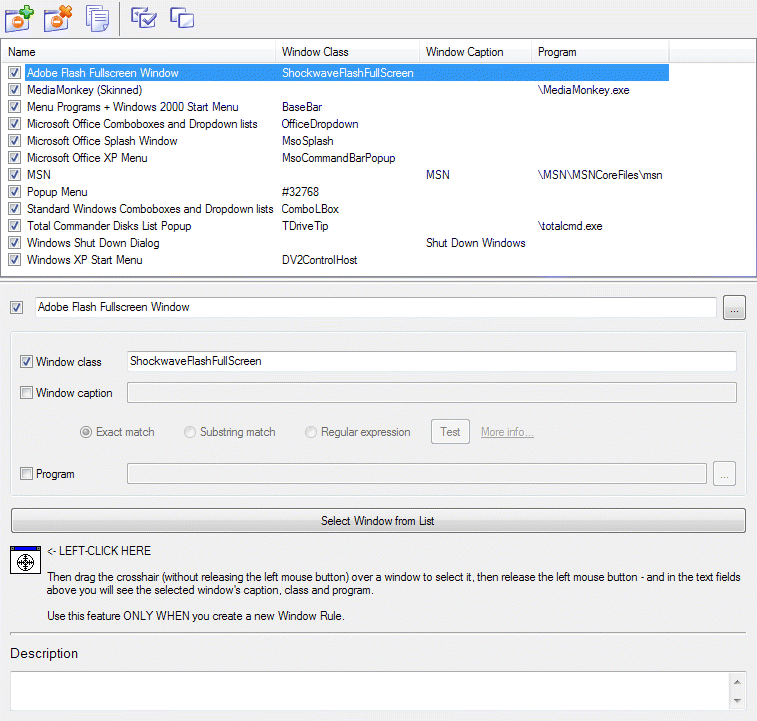
- Exclusions toolbar
- Exclusions list
- Target Window pane containing the information related to the item selected in the list.
The Exclusions toolbar contains the following commands:
 Add Exclusion
- adds new item to the Exclusions list. The new item will get the default name Exclusion <n>
(e.g. Exclusion 1, Exclusion 2 etc.).
Add Exclusion
- adds new item to the Exclusions list. The new item will get the default name Exclusion <n>
(e.g. Exclusion 1, Exclusion 2 etc.).
 Delete Exclusion
- deletes the item selected in the Exclusions list.
Delete Exclusion
- deletes the item selected in the Exclusions list.
 Copy Exclusion
- adds new item that will be an exact copy of the item selected in the Exclusions list. The new item will get the default name
Copy <n> of <copied_item's_name>.
Copy Exclusion
- adds new item that will be an exact copy of the item selected in the Exclusions list. The new item will get the default name
Copy <n> of <copied_item's_name>.
 Enable All
- enables all Exclusions items.
Enable All
- enables all Exclusions items.
 Disable All
- disables all Exclusions items.
Disable All
- disables all Exclusions items.
In the Exclusions list each item represents a particular exclusion rule. The list consists of the four columns:
- Name - shows the exclusion name
- Window class - shows the string value provided for the Window Class criterion of rule's Target Window criteria set
- Window caption - shows the string value provided for the Window Caption criterion of rule's Target Window criteria set
- Program - shows the string value provided for the Program criterion of rule's Target Window criteria set
You can click on any column's header to sort the list ascending/descending by that column in alphabetical order (by default, the list is sorted by the Name column).
Also, every item in this list has a check box on the left of its name. You can mark/unmark this check box to enable/disable particular rule.
Upon selecting the desired item, the Target Window pane will show its Target Window criteria values so you can alter them. You can select an item by:
- left- or right-clicking its name
- using the cursor keys
- typing a few first letters of its name to jump to it quickly
