
|
|
User Interface Options Panel
The User Interface Options panel allows adjusting the look of Configuration Module's main window.
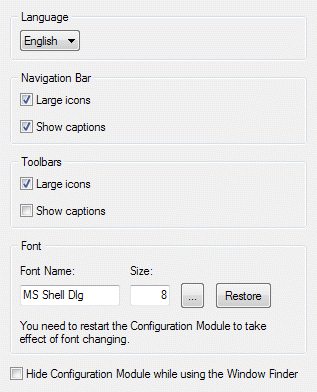
Language combo box - here you can select the preferred language for the whole Actual Window Manager user interface.
- Large icons check box - mark it to make the Navigation Bar icons twice larger.
- Show captions check box - mark it to show the panels' names on the buttons.
Toolbars group - contains check boxes allowing to adjust the following options:
- Large icons check box - mark it to make all toolbars' icons twice larger.
Font group - contains visual controls allowing to select the presentation font:
- Font Name edit box - here you see the selected font's name.
- Size edit box - here you see the selected font's size.
- ... button - press it to open the standard system "Font" dialog to select a desired font.
- Restore button - press it to restore the default "Font Name"/"Size" values.
Note
You need to restart the Configuration Module to apply the font change.
You need to restart the Configuration Module to apply the font change.
Hide Configuration Module while using the Window Finder check box - mark it to temporarily hide the Configuration Module's main window when you start to drag the Window Finder's icon. In this case, the main window won't block the access to its underlying windows and therefore you can easily target them with the Window Finder.
