
|
|
Navigation Pane
Navigation Pane
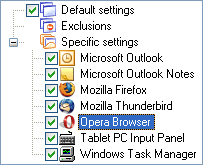
The Navigation Pane contains three special items:
Default settings - this item represents the Default Settings rule, you can mark/unmark a checkbox on the left of its name to enable/disable the Default Settings rule
Exclusions - this item represents the Exclusions list
Specific settings - this item represents the Specific Window Settings list
Besides, the Specific settings item has a list of subitems where each item represents a particular specific window rule. You can collapse or expand the Specific settings list by clicking the plus/minus sign on the left of its name. Every item in this list also has a checkbox on the left of its name. You can mark/unmark this checkbox to enable/disable a particular rule.
Upon selecting the desired item, the Details Pane will show its related options so you can alter them. You can select an item by:
- left- or right-click its name
- use the cursor keys
- typing a few first letters of its name to jump to it quickly
Also you can use the Navigation Pane to relocate a particular specific rule by dragging it with a mouse:
- left-click the desired item and hold the left mouse button
- without releasing the button, move the mouse to the desired new position
- release the left mouse button
