
|
|
Configuration Import Wizard
The Configuration Import wizard is a special tool that helps the users of previous versions of Actual Tools products to automatically import their old settings into Actual Window Manager. This wizard consists of the separate dialogs and each of them depicts the single phase of the Import process so wizard leads you through it step-by-step and also allows returning some steps back, change some options and then proceed further again. Each dialog contains the following buttons:
- Back button - allows returning one step before (i.e. to the previous dialog)
- Next button - allows proceeding one step further (i.e. to the next dialog)
- Cancel button - allows cancelling the Import process at all in any step
The Select the Product dialog allows you selecting what product do you want to import from (use the combo-box):
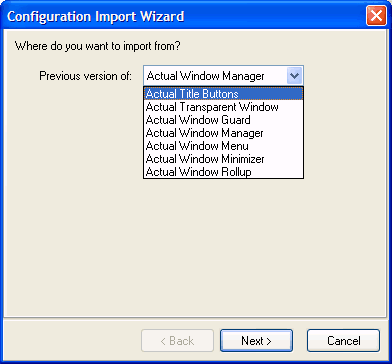
Note that you can import only from the same product (i.e. from Actual Title Buttons 3.8 to Actual Title Buttons 4.0) or from any product to Actual Window Manager.
The Select the File dialog allows you selecting where the previous version's settings file is located:
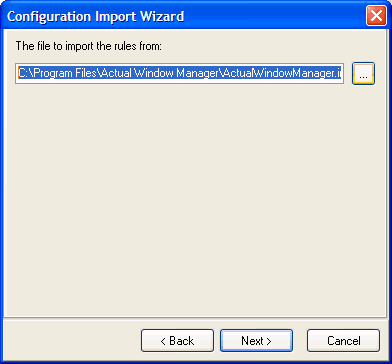
Here you can type the full name of this file manually in the File to import the configuration from edit field or use the ... button to open the standard Windows® Open File... dialog to select the requested file there.
The Import Options dialog allows you adjusting some Import process options:
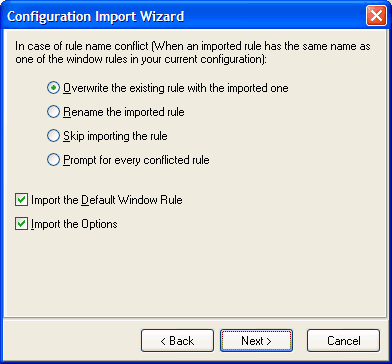
In the case of rule names conflict group - contains the radio buttons allowing to define the way in which the naming conflicts (the situations when the old imported rule has the same name as one of the currently existent rules) should be resolved:
Overwrite the existent rule radio button - the old rule will replace the current
Rename the imported rule radio button - the old rule will be renamed automatically to avoid any interferences
Skip importing the rule radio button - the old rule will not be imported at all
Prompt for every conflicting rule radio button - every time a naming conflict arises you will be asked what to do where you can choose the one of previous variants (i.e. overwrite/rename/skip)
Import the Default Window Rule checkbox - mark it to overwrite your current settings for the Default Settings rule with the older ones.
Import the Options checkbox - mark it to overwrite your current Options settings with the older ones.
The Ready to Import dialog (the last one) shows you the settings made in the previous steps and allows to start the Import process:
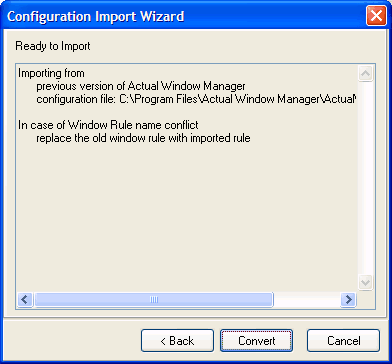
Click the Convert button to start the process with the defined settings.
